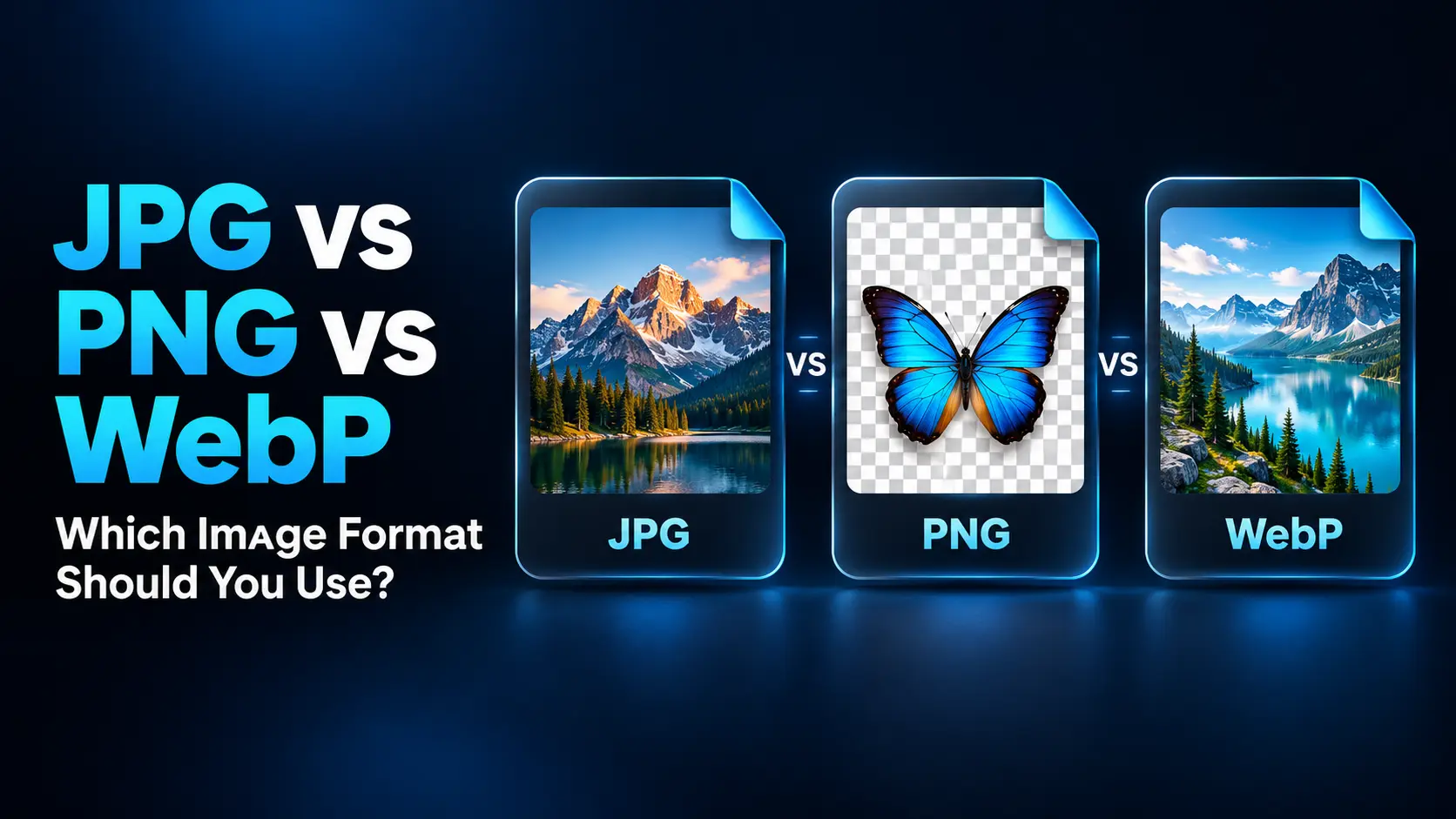
The practical answer depends on what the image contains and where it will be used. JPG is a convenient choice for sharing photographs. PNG works well when sharp graphics and transparency matter. WebP is a strong option for website images because it supports several compression methods in one format.
This guide explains the differences, shows when to use each format, and provides a straightforward workflow for balancing appearance, file size, and compatibility.
JPG vs PNG vs WebP: A Quick Comparison
Start with this comparison, then consider the requirements of your particular image.
| Feature | JPG | PNG | WebP |
|---|---|---|---|
| Typical compression | Lossy | Lossless | Lossy or lossless |
| Transparent backgrounds | No | Yes | Yes |
| Common uses | Photos and broadly compatible image sharing | Screenshots, diagrams, and transparent graphics | Website photos and graphics |
| Main advantage | Practical photo compression and broad compatibility | Preserves image detail without lossy compression | Flexible compression with transparency support |
| Main limitation | Compression can damage fine details | Photographic files can be large | Some apps and upload forms may not accept it |
Quick recommendation: Choose JPG for easy photo sharing, PNG for crisp graphics or transparent assets, and WebP for web delivery when your publishing system supports it.
What Is JPG?
JPEG is a widely used image compression format. Files commonly use either the .jpg or .jpeg extension. These extensions do not indicate different quality levels.
Ordinary JPG exports use lossy compression, which discards some image information to reduce file size. At a suitable quality setting, a photograph can look very close to its original while taking up substantially less storage.
When JPG works well
- Travel, food, portrait, and landscape photographs.
- Product photos with a solid background.
- Images sent to people using different devices and applications.
- Uploads to services that specifically request JPG files.
Its weaknesses become more visible around sharp edges, small lettering, and areas with strong color contrast. Heavy compression may introduce blocky patterns or fuzzy marks around text.
JPG also lacks transparent backgrounds. If you export a cutout image as JPG, the transparent area must be replaced with a solid background.
For example, JPG is a sensible choice for sending a holiday photograph. It is less suitable for a small navigation icon that needs to sit cleanly on several different background colors.
What Is PNG?
PNG stands for Portable Network Graphics. Its compression is lossless: the compression process preserves the image data being encoded instead of discarding detail to make the file smaller.
PNG supports transparency, including partially transparent pixels. This is useful for smooth edges, shadows, and graphics that must blend into a background.
When PNG works well
- Screenshots containing menus, labels, or small text.
- Charts, diagrams, and illustrations with distinct edges.
- Transparent graphics used in presentations or design projects.
- Images that need lossless storage within the format’s supported capabilities.
The tradeoff is file size. A detailed photograph saved as PNG may be much larger than a visually acceptable JPG or WebP version.
Also, a PNG export is not automatically identical to your original document. Resizing, reducing the color palette, or changing the image before compression can still alter its appearance.
Imagine preparing a tutorial screenshot with tiny settings labels. PNG is a useful starting point because readers need to distinguish every letter. Preserving those labels matters more than making the attachment a little smaller.
What Is WebP?
WebP is an image format developed by Google for efficient image delivery. It supports lossy compression, lossless compression, transparency, and animation.
This flexibility allows the same format to serve different purposes. A website photograph can use lossy WebP, while a graphic with fine lettering can use lossless WebP.
Current versions of major browsers, including Chrome, Firefox, Safari, and Edge, support WebP. However, browser support does not mean every image editor, document application, or upload form accepts it.
When WebP works well
- Blog photographs and article illustrations.
- Product images displayed in online stores.
- Transparent website graphics.
- Other web images where reducing transferred data is useful.
WebP can produce smaller files than JPG or PNG at a suitable visual quality, but it does not win every comparison. Results depend on the image, compression mode, export settings, and existing optimization.
For an online shop, try exporting one representative product photo and one transparent cutout. Check both before converting the entire catalog. A successful test with a simple photograph does not tell you how every graphic will behave.
Lossy vs Lossless Compression: Why It Matters
Lossy compression trades some image information for a smaller file. The goal is to remove details that are less noticeable, but aggressive settings can make the changes obvious.
Lossless compression reduces storage without that deliberate loss of image data. It is valuable when preserving fine detail matters more than achieving the smallest possible download.
Neither approach solves every problem. A lossless file can preserve an already blurry image perfectly. A carefully compressed lossy photograph can look excellent at its intended display size.
Separate two questions when evaluating an export: “Did the compression change the image?” and “Does the image look good enough for this purpose?” The answers are related, but they are not always the same.
Which Format Should You Use for Different Images?
Photographs
For general sharing, start with JPG. For a website, compare JPG with lossy WebP at the same pixel dimensions.
Inspect faces, hair, foliage, and smooth backgrounds. These areas can reveal softened detail or uneven gradients. Choose the smaller version only if its appearance remains suitable.
Screenshots and text-heavy graphics
Start with PNG or lossless WebP. Examine the smallest text and thin lines, especially colored lettering against a contrasting background.
A screenshot with a large photograph inside it may produce a different result from a simple settings window. Judge the actual content instead of assuming that all screenshots compress equally well.
Transparent product images and overlays
Use PNG or WebP, then preview the export against both light and dark backgrounds. An edge that looks clean on white may reveal a pale fringe on a dark page.
For assets handed to another person, confirm their software accepts the chosen format. A slightly larger PNG can be more practical than a WebP file that interrupts their workflow.
Logos and icons
Among these three formats, PNG or lossless WebP is usually a sensible starting point for raster logos. If you already have a vector original, SVG may be more appropriate because it can scale without the pixelation associated with enlarging raster images.
Keep the editable source file regardless of the format used for publication.
Image Dimensions Can Matter More Than the Format
Changing the file format is only one part of optimization. An image can remain unnecessarily large because it contains far more pixels than its destination needs.
A 6,000 × 4,000 image contains 24 million pixels. A 1,500 × 1,000 version contains 1.5 million: one-sixteenth as many. File size will not necessarily decrease by the same ratio, but the difference shows why resizing deserves attention.
Do not resize solely to the visible width without considering display density. An image displayed at 800 CSS pixels wide may benefit from a 1,600-pixel-wide source on a screen with a device pixel ratio of two.
For websites, responsive images let the browser choose between different source sizes. This avoids sending the same oversized image to every visitor while still providing sharper versions where appropriate.
Consider the intended use before shrinking anything. A thumbnail, a full-width article image, and a downloadable photograph have different requirements.
How to Choose and Export the Right Format
1. Keep an original copy
Save the original photograph or editable design separately. Create publication versions from that source so you can change your export settings later without relying on an already compressed copy.
2. Check the destination’s requirements
Look for accepted formats, maximum file size, required dimensions, and transparency requirements. These restrictions can settle the choice before you compare compression settings.
For example, a form that accepts only JPG and PNG needs one of those formats even if WebP would produce a smaller file.
3. Crop and resize before the final export
Remove unwanted borders and choose dimensions appropriate for the destination. Check that cropping does not cut off important labels, faces, or product details.
4. Choose an appropriate compression mode
For photographs, try JPG or lossy WebP. For graphics with small text, test PNG or lossless WebP.
If an exporter uses a quality scale from 0 to 100, a setting around 75–85 can be a starting point for a photographic test. It is not a universal recommendation: quality scales vary between tools and formats.
A PNG compression-level control generally changes encoding effort and file size rather than visual quality. Separate controls for reducing colors or resizing can change the image.
5. Compare appearance and file size
Open the exported files at their intended display size and at 100% zoom. Check text, edges, faces, gradients, and transparent areas.
Do not compare a small WebP against a much larger JPG and attribute the entire difference to format. Keep dimensions consistent when testing compression.
6. Test the published result
Upload a sample and inspect the actual page or application. A publishing system may resize or recompress files, so the final result can differ from the export on your computer.
Confirm that the image opens, transparency behaves correctly, and important details remain readable on a phone as well as a larger screen.
Does WebP Improve Website SEO?
Google Search supports JPG, PNG, and WebP. Choosing WebP is therefore not a requirement for an image to be eligible to appear in search.
Smaller image downloads can help page performance, but changing a filename extension does not guarantee faster loading or better rankings. Dimensions, delivery, page layout, and the total number of images also matter.
Use descriptive filenames and useful alternative text where an image conveys information. For example, “Transparent product cutout shown on light and dark backgrounds” explains an illustration more effectively than a list of image-format keywords.
Choose a format because it serves the image and the visitor. Treat search visibility as part of a broader publishing process.
Common Image Conversion Mistakes
- Renaming instead of converting: Changing
photo.pngtophoto.jpgdoes not change the underlying format. Use an export or conversion function. - Expecting PNG to repair a JPG: Converting an existing JPG to PNG does not reconstruct detail previously discarded by compression.
- Repeatedly recompressing a lossy file: Successive lossy exports can accumulate damage. Return to your original source when preparing a new version.
- Forgetting transparency: When converting PNG or WebP to JPG, deliberately choose the background color.
- Assuming WebP is always smaller: Measure the result. Some conversions produce little benefit or even a larger file.
- Using one setting for every image: A portrait, a chart, and a transparent logo deserve separate checks.
Frequently Asked Questions
1. Are JPG and JPEG different formats?
No. In ordinary use, JPG and JPEG are filename extensions for the same image format. The extension alone does not determine compression quality or file size.
2. Is PNG always better quality than JPG?
PNG avoids lossy compression, but the source image still determines what detail is available. Saving a poor-quality JPG as PNG will preserve its existing flaws rather than fix them. For photographs, a well-exported JPG may be entirely suitable.
3. Is WebP always smaller than PNG or JPG?
No. File size depends on image content, dimensions, settings, and the compression already applied. Compare actual exports at an acceptable visual quality instead of expecting a fixed percentage reduction.
4. Which formats support transparent backgrounds?
PNG and WebP support transparency. Ordinary JPG does not. Choose PNG or WebP for cutouts, overlays, and other assets that need to show the background beneath them.
5. Can converting an image improve its quality?
Changing formats does not recover missing detail. Conversion can improve compatibility, reduce file size, or avoid further lossy compression, but a better original source is needed to restore genuinely missing information.
Choosing the Right Format
Use JPG when convenient photo sharing and broad compatibility are your priorities. Use PNG when sharp graphics, transparency, and lossless storage suit the task. Test WebP when you want efficient website images with flexible compression options.
Before publishing, check three things: whether the destination accepts the file, whether the image looks right, and whether its dimensions and file size are reasonable for its purpose. Those checks are more useful than choosing a single format for everything.