This usually happens because the width and height were changed by different proportions. The solution is to preserve the image’s aspect ratio and decide how to handle any space left over.
In this guide, you will learn how to resize an image without stretching it, when to crop or add padding, and how to keep the final result clear in an image editor or on a website.
The Quick Answer: Keep Width and Height Linked
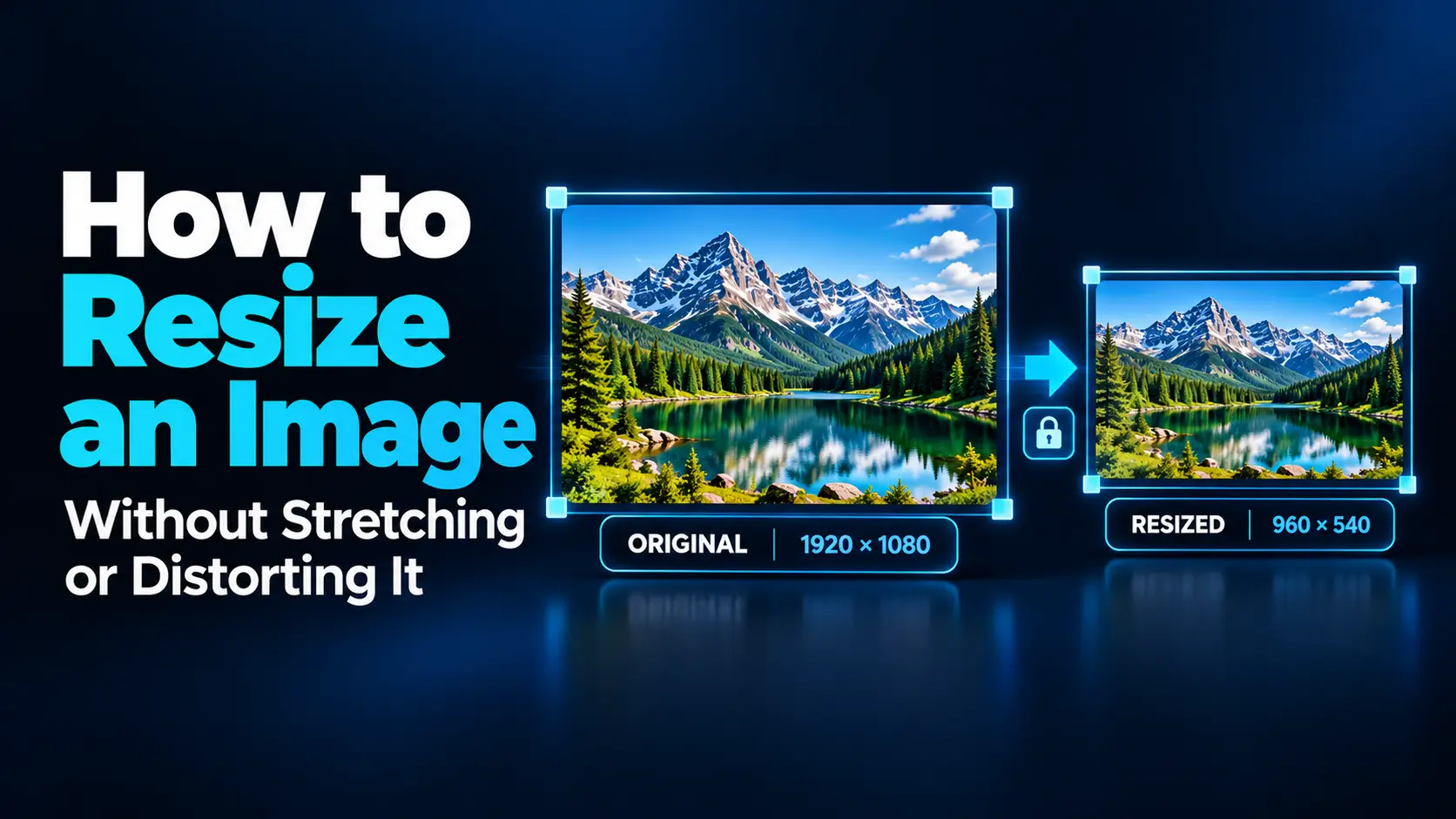
To resize an image without changing the shape of its contents, enable the setting called Maintain aspect ratio, Constrain proportions, or a similar name. Many editors represent this setting with a chain or lock icon beside the width and height fields.
Enter one dimension and let the editor calculate the other. If you need an exact width and height that do not match the original proportions, crop the image or add space around it.
For example, a 1,600 × 900 image can become 800 × 450 without distortion. Forcing it directly into 800 × 800 changes its proportions and stretches the content vertically.
What Is an Image’s Aspect Ratio?
An aspect ratio describes the relationship between width and height. It tells you the shape of an image rather than its exact pixel dimensions.
A 1,920 × 1,080 image and a 1,280 × 720 image both have a 16:9 aspect ratio. Their dimensions differ, but their rectangular shape is the same.
| Aspect ratio | Example dimensions | Shape |
|---|---|---|
| 1:1 | 1,000 × 1,000 pixels | Square |
| 4:3 | 1,200 × 900 pixels | Landscape rectangle |
| 3:2 | 1,500 × 1,000 pixels | Landscape rectangle |
| 16:9 | 1,920 × 1,080 pixels | Wide landscape rectangle |
| 9:16 | 1,080 × 1,920 pixels | Tall portrait rectangle |
These are examples of proportions, not universal upload requirements. Check the destination’s dimensions before preparing your image.
Resizing, Cropping, Padding, and Stretching Are Different
These operations solve different problems. Choosing the right one is more important than finding a particular resize tool.
| Method | What changes? | Main tradeoff |
|---|---|---|
| Proportional resizing | Width and height change by the same scale factor | The result may not match both requested dimensions |
| Cropping | Part of the image is removed from the frame | Some original content is excluded |
| Padding | Space is added around the image | Borders or background areas remain visible |
| Stretching | Width and height change independently | Shapes and proportions become distorted |
If the original and target ratios differ, you cannot simultaneously preserve every part of the image, fill the entire frame, and keep the original proportions using ordinary resizing alone. You need to choose which requirement matters most.
1. Check the Original and Target Dimensions
Before editing, note the original width and height. Then identify what the destination actually requires.
Sometimes a website asks for a maximum width, leaving the height flexible. In that case, proportional resizing is straightforward. Other destinations require an exact rectangle, such as a square product thumbnail or a wide banner.
Ask yourself:
- Must the final file have an exact width and height?
- Does the entire original image need to remain visible?
- Can the design include borders or empty space?
- Is the source large enough for the intended display?
For a product catalog, preserving the complete product may be more important than filling every pixel. For a decorative banner, cropping extra background may be acceptable.
2. Resize Proportionally When the Shape Can Stay the Same
Open a copy of the image and locate the resize controls. Choose pixels as the unit when preparing ordinary website or screen images.
Enable the proportion lock, enter the required width or height, and check the automatically calculated value before applying the change.
You can also calculate it yourself:
New height = original height × new width ÷ original width.
For a 2,400 × 1,600 photograph resized to 1,200 pixels wide:
1,600 × 1,200 ÷ 2,400 = 800 pixels high.
The correct output is therefore 1,200 × 800. Both dimensions have been reduced to half their original values.
If you resize by percentage, apply the same percentage to both dimensions. Small rounding differences can occur because an image must contain whole pixels.
3. Crop When You Need to Fill a Different Shape
Cropping works well when the final frame must be filled and some content around the edges can be removed.
Suppose you have a 1,600 × 900 landscape photograph and need an 800 × 800 square image. One approach is to crop a 900 × 900 square from the original, then resize that square to 800 × 800.
The subject keeps its natural proportions, but part of the original scene is excluded.
- Choose the crop tool.
- Set the target aspect ratio, such as 1:1.
- Move the crop frame to preserve the important subject.
- Apply the crop.
- Resize the cropped image to the required pixel dimensions.
Check faces, text, hands, product edges, and other important details before accepting the crop. Centering the frame automatically does not always produce the best composition.
If essential content sits near both sides of a wide image, a square crop may not be suitable. Consider padding instead.
4. Add Padding When the Entire Image Must Remain Visible
Padding places the proportionally resized image inside a larger canvas. It is useful for product photographs, logos, documents, and illustrations that should not be cut off.
Using the same 1,600 × 900 source, resize it to 800 × 450. Place that result on an 800 × 800 canvas.
The remaining vertical space is 350 pixels. Centering the image gives you 175 pixels above and 175 pixels below it.
- Resize the image proportionally so it fits within the target dimensions.
- Create or enlarge the canvas to the exact required size.
- Position the image inside the canvas.
- Choose a background color or transparency where supported.
- Export and check the final dimensions.
In an editor, canvas size and image size are separate controls. Enlarging the canvas adds room around the content; it does not automatically enlarge the subject.
For a white-background product catalog, white padding may blend naturally into the page. A transparent logo may need a format that preserves its transparent surroundings.
5. Use a Reliable Editor Workflow
Resize an image in GIMP
GIMP provides separate controls for scaling the image and changing the canvas.
- Open your image and keep the original file unchanged.
- Select Image → Scale Image.
- Set the width and height units to pixels.
- Make sure the chain beside width and height is linked.
- Enter one target dimension and check the other.
- Choose an appropriate interpolation method and select Scale.
- Export a new copy.
Use Image → Canvas Size when you need additional space around the scaled image. Confirm the background and layer arrangement before exporting.
Resize an image in Photoshop
- Open Image → Image Size.
- Choose pixels for the width and height units.
- Enable the link that constrains the aspect ratio.
- Enable resampling when you want to change the actual pixel dimensions.
- Enter one dimension, review the result, and confirm.
If the required output has a different shape, use cropping or canvas adjustments as a separate step. Avoid unlinking the dimensions simply to force both numbers to match.
6. Understand Why a Correctly Resized Image Can Still Look Blurry
Distortion and blur are different problems. Distortion changes shapes; blur reduces visible detail. An image can preserve its proportions and still look soft.
Changing pixel dimensions involves image scaling and resampling. Reducing an image removes information, while enlarging it requires the software to calculate additional pixels.
A larger pixel count does not guarantee more genuine detail. Enlarging a small, blurry source cannot reliably recover information that was never captured.
To protect the result:
- Start with the best available source.
- Prepare each output from that source instead of repeatedly resizing previous exports.
- Inspect small text, faces, and detailed edges.
- Avoid unnecessarily aggressive export compression.
- Check the image at the size people will actually view it.
For website work, focus on pixel dimensions. Changing a PPI value without changing the pixel dimensions does not create a sharper web image.
7. Fix Stretching Caused by Your Website
If the file looks correct in an image viewer but stretched on a page, the website’s display rules may be responsible.
For a normal responsive image, a common CSS pattern is:
.article-image {
  max-width: 100%;
  height: auto;
  display: block;
}
This allows the image to shrink within its container while its height follows its proportions.
For a fixed square image box, choose how the content should fit:
.product-image {
  width: 100%;
  aspect-ratio: 1 / 1;
  object-fit: contain;
}
The contain setting preserves the whole image and may leave unused space. Use object-fit: cover when the box must be filled and clipping is acceptable. Adjust object-position to keep the subject visible.
The fill behavior can stretch content when the box has a different ratio. CSS fitting changes how the image is displayed; it does not create a newly resized downloadable file.
8. Allow Enough Pixels for Sharp Screen Display
A correctly proportioned image may still look soft on a high-density screen if the website delivers too small a source.
For example, an image displayed at 600 CSS pixels wide may benefit from a 1,200-pixel-wide source on a display with a device pixel ratio of two.
Responsive image features such as srcset and sizes let a website offer several versions. The browser can choose a source according to the layout, display density, and other conditions.
Test the actual page after uploading. Your theme may select a thumbnail or apply a crop that differs from the image you exported.
9. Export in a Format That Suits the Image
Resizing and compression solve different problems. After choosing the dimensions, select an appropriate output format.
- Photographs: JPG or lossy WebP can provide practical delivery files.
- Screenshots and detailed graphics: PNG or lossless WebP can help preserve crisp lettering and lines.
- Transparent assets: Use a format that supports transparency, such as PNG or WebP.
- Vector logos: Keep a suitable SVG original when available for scalable shapes.
Changing the format will not repair stretched proportions. Correct the geometry first, then compare export settings.
A Final Check Before Publishing
Review the finished image with a few specific questions:
- Do circles remain circular and faces look natural?
- Are the width and height correct?
- Has cropping removed anything important?
- Does padding look intentional against the destination background?
- Are text and small details readable?
- Does the published version match the exported file?
For a batch of images, check different compositions before applying one preset to everything. A centered product photo and a portrait with the subject near an edge may need different framing.
Frequently Asked Questions
1. How do I resize an image to exact dimensions without stretching it?
If the target has the same aspect ratio, resize proportionally. If the ratios differ, crop to fill the frame or add padding to preserve the entire image.
2. Can I turn a landscape image into a portrait image?
Yes, but ordinary resizing alone cannot preserve all the content and fill the new shape. Use a portrait crop, add background space, or create a new layout around the original.
3. Why does my image look wider after resizing?
The width probably changed by a larger proportion than the height, either in the editor or on the website. Return to the original and check the aspect-ratio lock or display settings.
4. Does cropping reduce image quality?
Cropping alone removes part of the frame without necessarily changing the retained pixels. However, it leaves fewer pixels overall. Enlarging that smaller crop or applying lossy compression afterward can affect sharpness.
5. Can I enlarge an image without any quality loss?
You can preserve its proportions, but a raster image has limited original detail. Enlargement estimates additional pixels. Use a larger source or a genuine vector original when available.
Choose the Right Fit for the Image
Keep width and height linked whenever you resize. When the required shape differs, decide whether cropping or padding better serves the content.
Finish by checking both the exported file and its destination. Correct dimensions, natural proportions, and suitable display settings work together to produce an image that fits without looking stretched.