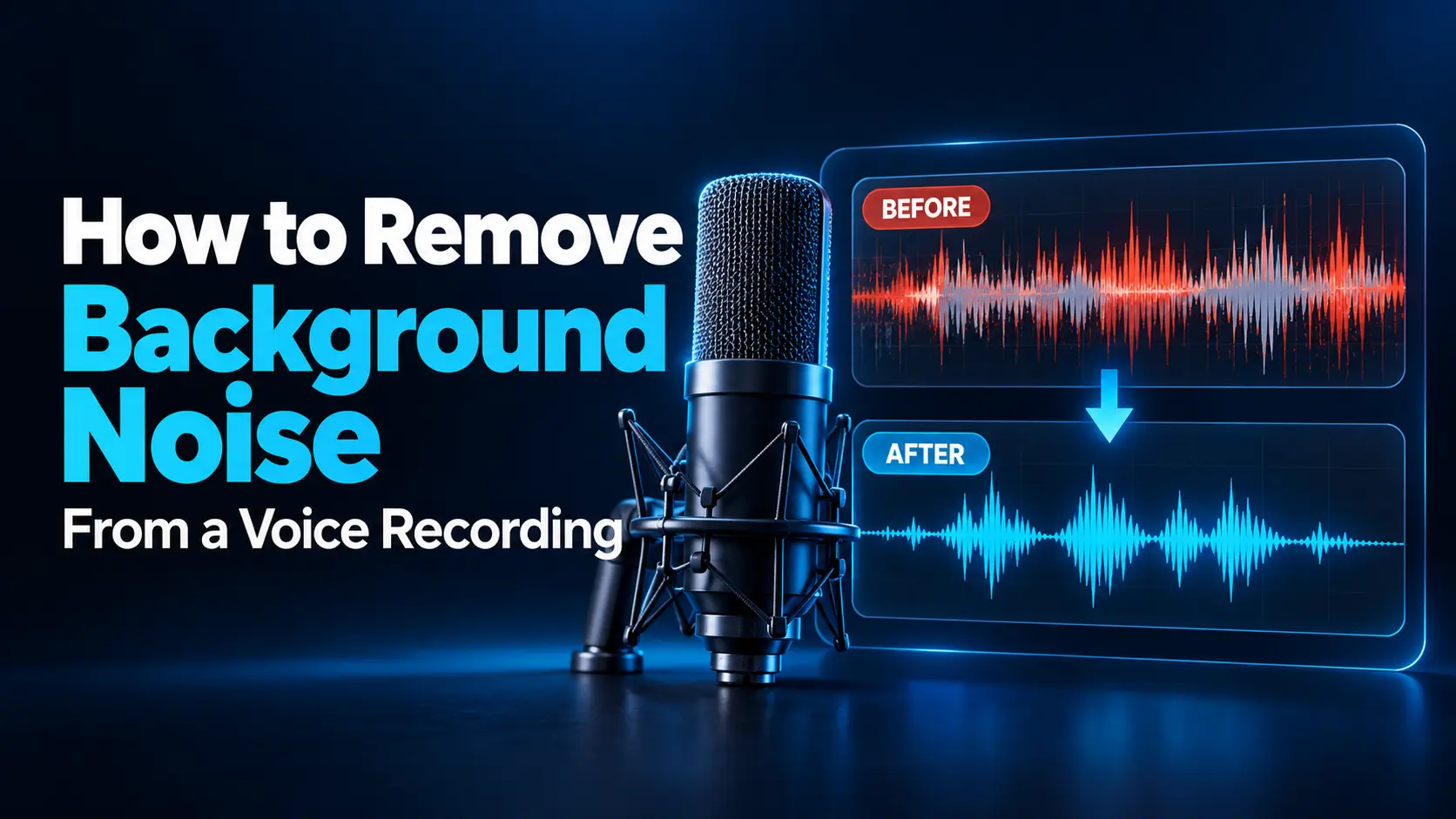
You can often improve the recording by identifying the problem and applying the right treatment. However, removing every trace of background sound is not always possible without changing the voice. The goal is clear, comfortable speech that still sounds natural.
This guide explains how to choose an appropriate cleanup method, use noise reduction in Audacity, handle common recording problems, and avoid mistakes that make voices sound thin or robotic.
Start by Identifying the Unwanted Sound
Listen to a section containing speech and another containing a pause. Decide whether the distraction is continuous, occasional, or part of the room’s acoustics. Different problems need different tools.
| Problem | What it sounds like | Possible treatment |
|---|---|---|
| Steady hiss or fan noise | A continuous background sound | Noise reduction or speech enhancement |
| Low rumble | Deep vibration or traffic-like sound | A carefully adjusted high-pass filter |
| Electrical hum | A steady low tone, sometimes with buzzing | De-hum processing or narrow notch filters |
| Clicks or isolated interruptions | Short ticks, bumps, or sudden noises | Local editing, click repair, or spectral repair |
| Room reverberation | A hollow sound or lingering voice reflections | Dereverberation or a better recording setup |
| Distortion on loud words | Harsh, crackling speech peaks | Clipping repair where possible, or rerecording |
For example, a desk fan running throughout a narration is a different problem from a door closing during one sentence. Applying the same effect to both may waste time or damage otherwise good audio.
1. Keep the Original and Choose a Test Section
Save an untouched copy before editing. Work on a duplicate track or project so that you can compare results and reverse decisions.
Choose a short test section containing several useful features:
- A normal spoken sentence.
- A quiet word or soft sentence ending.
- A pause with the unwanted background sound.
- A louder phrase and any difficult consonants.
A sample of roughly 15–30 seconds is usually enough to judge an initial treatment. Testing a small section is faster than processing a long recording every time you change a setting.
Write down what needs improvement before applying anything. “The fan distracts during pauses” is a clearer target than “make this sound professional.” It also helps you recognize when the result is good enough.
2. Remove Steady Noise in Audacity
Audacity provides a noise reduction effect that learns from a sample of unwanted sound. It is most useful for relatively steady noise.
- Import the recording: Open your working copy in Audacity.
- Select noise only: Highlight a short section containing the background noise without speech or breaths.
- Capture the profile: Open Effect → Noise Removal and Repair → Noise Reduction and choose Get Noise Profile.
- Select the test audio: Highlight the section you want to evaluate, then reopen the effect.
- Preview a modest reduction: Around 6 dB is a reasonable first trial, not a universal setting.
- Check what is removed: Use the noise-only or residue option, if available. Recognizable speech indicates unwanted removal.
- Apply the normal output: Switch back to the noise-reduced audio mode before applying.
Menu wording may vary by version. Increase processing cautiously: excessive reduction can create metallic or watery artifacts. If the background changes substantially, separate sections may need different profiles.
3. Reduce Low Rumble with a High-Pass Filter
A high-pass filter reduces frequencies below a chosen cutoff. It can help with low-frequency vibration, microphone handling noise, and some traffic or ventilation rumble.
For speech, try a gentle setting around 60–80 Hz as an initial experiment, then adjust while listening. Some voices need more low-frequency content than others, so there is no single cutoff that suits everyone.
Stop increasing the cutoff if the speaker begins to sound thin or loses natural warmth. A filter that removes rumble from one voice may remove useful vocal information from another.
Do not assume the effect’s current default is suitable for speech. Check both the cutoff and filter slope before applying it. A steeper slope changes how sharply the low frequencies are reduced.
4. Treat Hum and Sudden Noises Separately
Electrical hum often contains a strong tone related to the local power frequency, commonly 50 or 60 Hz, along with higher harmonics. A de-hum tool or carefully placed notch filter can target these tones.
A spectrogram can help locate persistent tonal lines or isolated sounds. Use narrow, targeted corrections where possible rather than removing a large section of the voice’s frequency range.
For a click during a pause, local repair may be enough. A noise overlapping a word is harder: deleting the entire moment also deletes part of the speech. Spectral repair or click-removal tools may help, but results depend on the overlap.
For a scripted narration, replacing one damaged sentence can be quicker and more convincing than attempting extensive restoration.
5. Clean Up Pauses Without Making Them Unnatural
A noise gate reduces audio when its level falls below a threshold. This can quiet the spaces between phrases, but it does not remove noise underneath speech while the gate is open.
Set the threshold above the background level but below the quietest speech you want to preserve. Use moderate attenuation and a smooth closing time so that sentence endings do not disappear abruptly.
If the noise is nearly as loud as the voice, a gate may not separate them successfully. Avoid forcing a setting that cuts off soft words.
Manual volume adjustments are another option. Lower a distracting pause gently rather than silencing every gap. Short fades can smooth transitions, and some consistent room ambience often sounds more natural than alternating speech and absolute silence.
Keep breaths that support the speaker’s rhythm. Removing every breath can make an otherwise clear recording feel rushed and artificial.
6. Consider AI Speech Enhancement for Difficult Recordings
Speech enhancement tools, including Adobe Podcast Enhance Speech, offer another approach to cleaning spoken audio. They can be worth testing when a recording contains changing background sounds or distracting room ambience.
Start with a short sample. If the tool offers an enhancement-strength control, compare a moderate setting with a stronger one instead of assuming maximum processing will sound best.
Listen for changes to pronunciation, quiet syllables, breaths, and the speaker’s vocal character. Compare the processed version with the original sentence by sentence where accuracy matters.
For example, an interview may contain unfamiliar place names or softly spoken answers. A result that sounds smoother overall is not useful if an important word becomes unclear.
Judge the exported file rather than relying solely on a preview. Keep the original and choose the version that preserves both intelligibility and the intended sound of the speaker.
7. Treat Echo as a Separate Problem
Reverberation comes from sound reflecting around a space. It is different from a fan or electrical hiss because the reflections are related to the voice itself.
A dedicated dereverberation effect may reduce a roomy sound. Apply it conservatively and compare sentence endings, where reflections are easiest to hear.
Imagine a voiceover recorded in an empty kitchen. Removing the refrigerator noise may help, but the voice can still sound distant because of reflections from hard surfaces.
If you can rerecord, moving closer to the microphone and choosing a less reflective space may produce a better result than adding several stronger effects. For an irreplaceable interview, aim for improved understanding rather than a completely dry studio sound.
8. Adjust Levels After the Main Cleanup
Once the main distractions are controlled, check whether the voice is comfortable to hear from beginning to end.
Raising the volume alone does not separate speech from background noise. A simple gain increase raises both together. Likewise, normalization is a level-setting process, not a substitute for noise removal.
Use small manual level adjustments for noticeably quiet phrases before deciding whether broader dynamics processing is necessary. Avoid making each word equally loud; natural variation helps speech remain expressive.
Compare your original and edited versions at similar perceived loudness. Otherwise, the louder version may seem better simply because it is louder.
Finally, check that the finished recording does not overload or distort. Follow the delivery platform’s loudness requirements if it provides them instead of choosing a single target for every project.
A Practical Example: Cleaning a Tutorial Voiceover
Suppose you have a three-minute tutorial with a constant laptop fan, one desk bump between sentences, and several quiet phrase endings.
- Duplicate the recording and select a test passage containing both loud and quiet speech.
- Use a noise-only pause to evaluate a light treatment for the fan.
- Repair the isolated desk bump locally instead of processing the entire recording more heavily.
- Listen closely to the quiet endings and undo any treatment that makes them harder to understand.
- Adjust unusually quiet phrases if needed, then review the complete recording.
The successful result does not need to have perfectly silent pauses. It needs to let a listener follow the tutorial without being distracted by the equipment.
How to Prevent Background Noise in Future Recordings
Improving the recording setup often reduces the amount of restoration needed later.
- Choose a quieter time and location: Listen for traffic, appliances, and nearby conversations before recording.
- Move the microphone closer: An appropriate distance helps capture more direct voice relative to the room. Check your microphone’s guidance and avoid crowding it.
- Keep placement consistent: Turning away or leaning back can make the voice quieter relative to the background.
- Use a pop filter appropriately: It helps control breath blasts, but it does not remove room noise.
- Reduce reflections: Curtains, rugs, and other soft furnishings can help tame a reflective room. They do not fully soundproof it.
- Avoid touching the setup: Desk taps and cable movement can travel into the microphone.
- Record a short test: Listen back before committing to a long session.
Leave several seconds of room sound at the beginning or end. This gives you a useful reference for editing and helps reveal problems that may be less obvious while you are speaking.
Common Audio Cleanup Mistakes
- Processing without a specific goal: Identify the distraction before choosing an effect.
- Stacking treatments automatically: Add another effect only when a clearly audible problem remains.
- Judging pauses alone: Listen to the voice, especially quiet words and sentence endings.
- Confusing distortion with background noise: Clipping damages the recorded signal and may require specialized repair. Complete recovery is not guaranteed.
- Skipping a full review: A setting that works at the beginning may fail when the speaker or background changes.
- Overwriting the source: Keep the untouched recording and your editable project.
Export and Check the Finished Recording
Keep a high-quality working master, such as an uncompressed PCM WAV file, alongside the project. Create an MP3 or AAC delivery copy when the destination calls for it.
Exporting to WAV does not restore detail already missing from the source, but it avoids adding another stage of lossy compression to the working copy.
Open the exported file and check its beginning, ending, pauses, and difficult phrases. Listen on headphones and an ordinary speaker. Confirm that the version you intend to publish contains the correct take and sounds clear at a comfortable volume.
Frequently Asked Questions
1. Can background noise be removed completely?
Sometimes a recording can be made very quiet, but complete removal is not always realistic. Noise overlapping speech can be difficult to separate. Preserving understandable, natural speech is usually more useful than chasing total silence.
2. Can I clean a voice recording for free?
Yes. Audacity provides tools for common cleanup tasks, including noise reduction, filtering, and manual editing. The right method depends on the recording problem, so test a short section before processing everything.
3. Why does my voice sound robotic after cleanup?
The processing may be removing useful vocal detail or altering the sound too strongly. Compare with the original, reduce the treatment, and check whether one of several applied effects is responsible.
4. Can I remove another person talking in the background?
Overlapping voices are challenging because both contain speech. Separation tools may help, but results vary. If the interruption occurs between sentences, local editing is easier; if it covers important words, rerecording may be preferable.
5. Should I remove every breath and pause?
No. Breaths and pauses contribute to natural pacing. Reduce distracting sounds when needed, but preserve the rhythm and meaning of the performance.
Keep the Voice at the Center of the Edit
Identify the unwanted sound, test a suitable treatment, and compare carefully with the original. Use local repairs for isolated problems and broader processing only where it helps.
Stop when the recording is comfortable to follow and the speaker still sounds natural. A clear voice with a little unobtrusive room sound is often a better result than heavily processed speech.