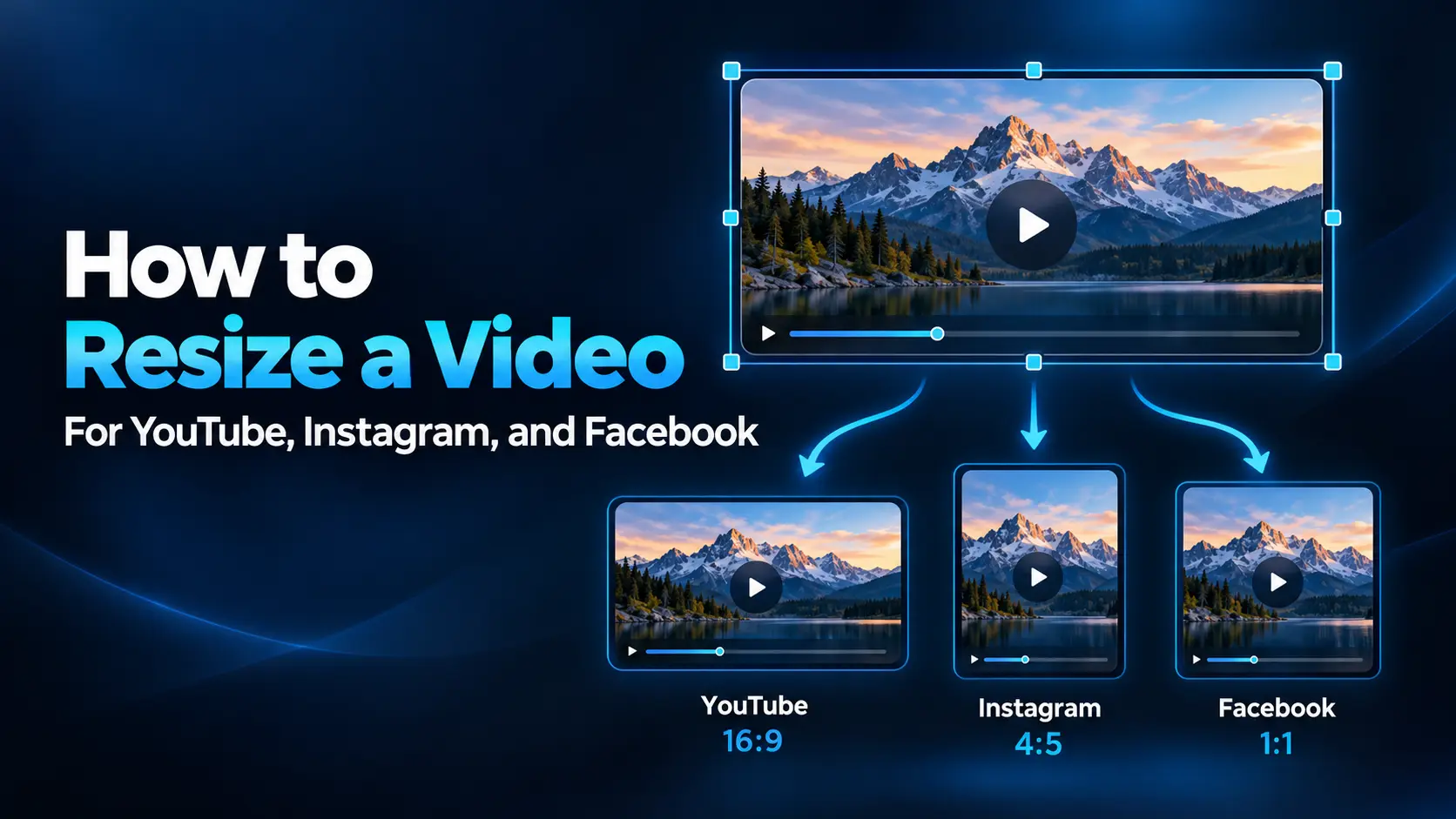
Resizing successfully involves more than changing the export resolution. You need to choose the right frame shape, decide how the original footage fits, and check the result throughout the video.
This guide explains how to prepare landscape, vertical, and square versions for YouTube, Instagram, and Facebook while preserving natural proportions and keeping important details visible.
Choose the Placement Before Choosing the Size
Start with where the video will appear. A standard YouTube viewing page, a full-screen Reel, and a Story do not present video in the same way.
The following dimensions are useful editing targets, not a complete list of accepted formats or mandatory upload limits. Check the publishing preview and any requirements shown by your chosen upload tool.
| Destination | Useful aspect ratio | Example dimensions | Editing priority |
|---|---|---|---|
| YouTube landscape video | 16:9 | 1920 × 1080 pixels | Preserve the wider composition |
| YouTube Shorts | 9:16 | 1080 × 1920 pixels | Keep the subject clear in a vertical frame |
| Instagram Reels | 9:16 | 1080 × 1920 pixels | Compose for full-screen vertical viewing |
| Instagram Stories | 9:16 | 1080 × 1920 pixels | Allow room for interface elements and stickers |
| Facebook full-screen vertical video | 9:16 | 1080 × 1920 pixels | Check the Reel and feed previews |
| Facebook Stories | 9:16 | 1080 × 1920 pixels | Keep essential text away from screen edges |
| Square or portrait feed layouts, where supported | 1:1 or 4:5 | 1080 × 1080 or 1080 × 1350 pixels | Use the layout that suits the publishing format |
Do not confuse recommended framing with acceptance rules. A platform may accept a landscape video even when vertical framing is more suitable for the viewing experience you want.
Understand Aspect Ratio, Resolution, and File Size
An aspect ratio describes the relationship between width and height. A 16:9 video is wide, while a 9:16 video is tall.
Resolution describes the number of pixels in the frame. Both 1280 × 720 and 1920 × 1080 use a 16:9 ratio, but the second contains more pixels.
File size is different again. It depends on duration, encoding settings, audio, and other factors. Changing the frame shape does not guarantee a smaller upload.
For example, exporting a horizontal clip at 1080 × 1920 does not automatically produce a good vertical edit. The editor still needs instructions about whether to crop, fit, or stretch the original footage.
1. Keep an Original Project and Create Separate Versions
Preserve your source recordings and the original edit. Duplicate the project or sequence before changing its shape.
Use clear names such as:
product-demo-landscapeproduct-demo-verticalproduct-demo-square
Separate versions let you reposition subjects and redesign captions without disturbing the original composition.
This is especially helpful for tutorials. A landscape version can show a complete software window, while a vertical version may need a closer view of the specific control being discussed.
2. Set the Project Canvas to the Target Ratio
Look for a setting called aspect ratio, canvas, sequence size, or project dimensions. Choose the target shape before making detailed framing adjustments.
Keep the clip’s width and height linked when scaling it. Stretching a landscape image to fill a portrait frame changes people’s faces, product shapes, and text proportions.
Once the canvas changes, review every layer. Titles, logos, backgrounds, and subtitles may stay in their old positions even when the main video is resized correctly.
A useful first check is to pause on a frame containing a face, a circle, or a familiar object. If its shape looks unnatural, the clip may have been stretched rather than scaled proportionally.
3. Choose Between Cropping, Fitting, and Redesigning
Crop to fill the frame
Cropping enlarges the footage proportionally until it fills the new canvas, leaving some of the original picture outside the visible area.
This works well when the important subject occupies a small portion of the original frame. A single presenter standing near the center is often easier to reframe than a group spread across a wide stage.
Fit the whole picture inside the frame
Fitting preserves the complete picture but leaves unused space when the ratios differ. You can use a plain background or build a deliberate layout around the footage.
For example, a vertical tutorial could place a landscape demonstration in the middle, a short heading above it, and a concise explanation below it.
Redesign the composition
Some footage needs more than a crop. For a two-person interview, you might show the active speaker, alternate between close-ups, or use a stacked layout.
For a screen recording, consider separate close-ups of important areas. A complete desktop squeezed into a narrow frame may preserve everything while making nothing readable.
4. Check How Much Detail a Vertical Crop Leaves
Cropping a wide video into a tall frame can remove a substantial amount of usable image area.
For a 1920 × 1080 source, a full-height 9:16 crop is approximately 608 pixels wide and 1080 pixels tall. Exporting that crop at 1080 × 1920 requires enlargement, which can make it look softer.
A 3840 × 2160 source offers more room. A full-height 9:16 crop is 1215 × 2160, enough to reduce to 1080 × 1920 without enlarging that crop.
These calculations assume no additional zoom or stabilization crop. They show why a high-resolution source can be helpful when preparing several layouts.
If the crop becomes too soft, consider a fitted design, a less aggressive close-up, or a different shot rather than increasing the export resolution.
5. Follow Moving Subjects Throughout the Clip
A crop that works at the beginning may fail later when someone walks across the scene or raises an object.
Watch the entire sequence and adjust the framing where necessary. Position keyframes can move the crop over time, but the movement should feel intentional rather than constantly chasing small changes.
Some editors offer automatic reframing. Adobe Premiere, for example, can create a duplicate sequence in a target ratio and apply Auto Reframe processing.
Treat automatic results as a starting point. Check moments with multiple people, rapid movement, scene changes, and objects entering from the side. The most visually prominent subject is not always the subject your story needs.
6. Resize Videos for YouTube
Standard landscape uploads
YouTube’s standard desktop player ratio is 16:9, and 1920 × 1080 is a practical landscape export size. However, YouTube adapts its player to other aspect ratios.
Keep a naturally vertical or square video in its intended shape unless you have an editorial reason to redesign it. YouTube recommends avoiding baked-in black bars because they interfere with the player’s ability to adapt.
YouTube Shorts
A 9:16 project is a useful choice for vertical Shorts. Square or vertical uploads up to three minutes fall under YouTube’s current Shorts classification rules for new uploads.
Changing dimensions does not shorten the story. If your original is a long tutorial, choose a self-contained section and edit it into a clear beginning, demonstration, and ending.
Check that captions remain readable and that any close-up still shows the action being explained.
7. Resize Videos for Instagram
For Reels and Stories intended for full-screen vertical viewing, start with a 9:16 canvas such as 1080 × 1920.
Review the composition in the actual publishing preview. A Reel can appear in different viewing surfaces, and a cover or profile preview may frame the content differently from full-screen playback.
When adapting a landscape clip:
- Identify the subject or action that must remain visible.
- Try a vertical crop and inspect the whole clip.
- Use a fitted layout if cropping removes essential information.
- Reposition captions and titles for the new frame.
- Review the cover separately from the moving video.
Do not assume that an image-post recommendation applies to every video upload. Reels, Stories, carousels, and third-party publishing tools can have different options. Follow the requirements shown for the specific format you are using.
8. Resize Videos for Facebook
Facebook’s publishing system has changed. Meta announced a transition that brings video uploads into the Reels publishing flow while continuing to support different video lengths and formats.
This means the label “Reel” should not automatically be interpreted as a requirement to crop every Facebook video vertically.
Use 9:16 when you want a full-screen vertical composition. Preserve a landscape presentation when the wider view is important, and check how Facebook previews it.
For Stories, a vertical layout is a practical starting point. For other presentations, compare the available preview options rather than relying on an old rule that separates all Facebook videos into fixed “feed video” and “Reel” categories.
For example, a short product demonstration may benefit from a vertical edit, while a wide stage performance may lose important content if forced into the same crop.
9. Keep Captions and Important Details Clear of the Interface
Social apps place controls, account names, descriptions, and other interface elements over or around video. Text that looks well positioned in your editor can become difficult to read after upload.
Keep essential information away from the extreme top, bottom, and sides. Leave extra room around captions and avoid placing critical labels underneath likely button areas.
There is no single pixel margin that works perfectly across all three platforms, devices, and viewing modes. Use placement guides when available and confirm the result in each app.
If subtitles are permanently embedded in the video, reposition them in each version. Uploading a caption track where supported can offer additional accessibility, but you should still review its presentation.
A Simple Resizing Workflow in Clipchamp
Microsoft Clipchamp provides aspect-ratio controls and options for fitting or filling a frame.
- Create a project: Import the original footage and place it on the timeline.
- Choose the aspect ratio: Select the project’s aspect-ratio control and choose the required shape.
- Adjust each clip: Use fit to preserve the whole picture or fill to crop it into the canvas.
- Reposition the subject: Check the visible area and adjust the framing.
- Review overlays: Move titles, captions, and logos where necessary.
- Preview the complete video: Check every scene, not only the opening frame.
- Export a separate version: Keep the original project and verify the output dimensions.
Controls can differ by account type and interface version. The same sequence of decisions applies in other editors with canvas and crop controls.
Export Without Unnecessary Quality Loss
For ordinary SDR social video, MP4 with H.264 video and AAC audio is a practical starting point. Use a preset suited to the destination and confirm the final frame dimensions.
For YouTube, the official upload recommendations include H.264 and preserving the recorded frame rate. Its example SDR video bitrates for 1080p are 8 Mbps for standard frame rates and 12 Mbps for higher frame rates.
Those figures are YouTube guidance, not universal requirements for Instagram and Facebook. Use the relevant publishing requirements and inspect the result.
Export each version from the source project. Downloading a previously published clip, resizing it, and uploading it again adds avoidable processing.
Prepare a short test export when uncertain. Check faces, motion, small lettering, audio synchronization, and the opening and closing frames before exporting the entire project.
Common Mistakes to Avoid
- Stretching instead of cropping: Keep the footage’s proportions linked.
- Using one center crop for every shot: Different scenes may need different framing.
- Forgetting existing captions: Text near the edge of a landscape frame may disappear in portrait.
- Confusing rotation with reframing: Rotating correctly oriented footage turns the subject sideways.
- Exporting a large frame from a tiny crop: More output pixels do not restore missing source detail.
- Checking only the editor: Review the uploaded result after platform processing finishes.
Frequently Asked Questions
1. Can I use one vertical video on all three platforms?
A 1080 × 1920 version can be a useful starting point for Shorts, Reels, and Stories. Check duration, captions, cover framing, and other publishing requirements separately for each destination.
2. How do I resize a video without cropping?
Scale it proportionally to fit inside the target canvas. Use the remaining space as a background or part of a deliberate layout. Different source and target ratios will leave unused areas.
3. Why does my vertical version look blurry?
The crop may contain too few source pixels and require enlargement. Heavy compression can also reduce clarity. Start from the original footage and compare a less aggressive crop or fitted layout.
4. Should every Facebook video be 9:16?
No. Vertical framing suits full-screen phone viewing, but Facebook supports varied video presentations. Choose a composition that preserves the content and check the current publishing preview.
5. Does resizing change the video’s duration?
Changing frame dimensions alone does not change duration. Trimming, splitting, or adjusting playback speed are separate editing operations.
Build Each Version Around the Viewing Experience
Choose the destination first, set the canvas, and decide whether to crop or preserve the full picture. Review movement and reposition text before exporting.
A successful resize keeps the story understandable. The subject remains visible, captions stay readable, and the video looks intentional in the place where people watch it.
Further Reading
- YouTube: Video resolution and aspect ratios
- YouTube: Understanding three-minute Shorts
- YouTube: Recommended upload encoding settings
- Instagram: Reel size and aspect ratios
- Meta: Changes to Facebook video publishing
- Microsoft: Change a video’s aspect ratio in Clipchamp
- Adobe: Auto Reframe for sequences