The process can be straightforward: open the video in a compatible application, choose an audio-only output, and save a new file. However, the method you choose affects compatibility, file size, and whether the audio is encoded again.
This guide explains practical methods for extracting audio from your own local video files, choosing an output format, and checking that the finished recording contains the sound you intended.
What Does Extracting Audio Actually Mean?
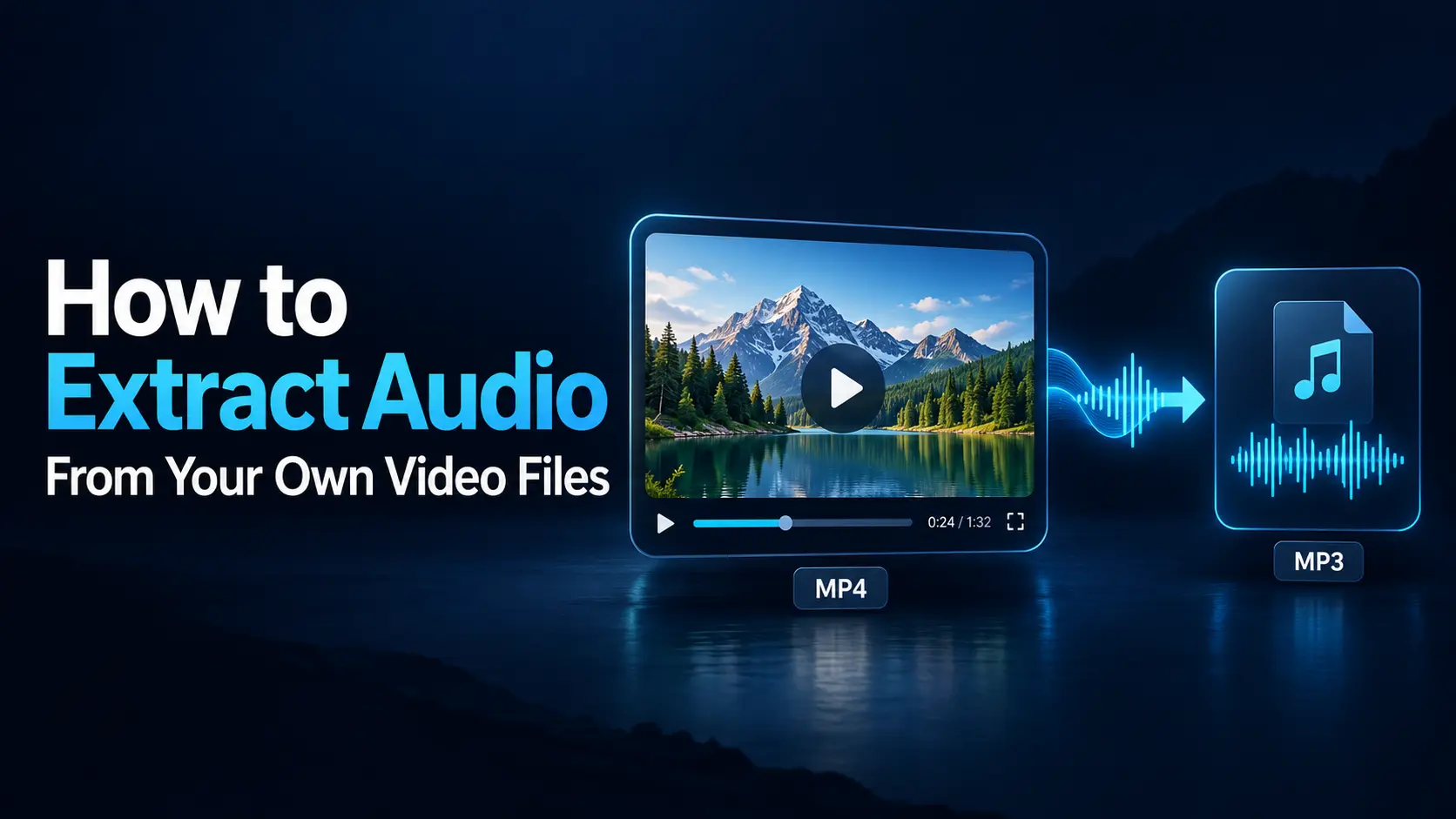
A video file can contain separate streams for pictures, audio, subtitles, and other information. Extracting audio creates an audio-only file from one or more of its audio streams.
There are two main approaches:
- Stream copying: Copy the existing encoded audio into a compatible output container without encoding it again.
- Conversion: Decode the sound and export it using a chosen audio format or encoding setting.
Stream copying avoids another generation of compression loss. Conversion is useful when you need a different format, want to edit the recording, or must meet a destination’s requirements.
For example, an AAC soundtrack inside an MP4 video can often be copied into an M4A file. Creating an MP3 from that same AAC soundtrack requires conversion.
Choose the Output Format Before You Begin
The right format depends on what you plan to do with the audio.
| Output | Useful for | Main consideration |
|---|---|---|
| MP3 | Convenient listening and broad compatibility | Lossy encoding; quality depends on the settings |
| M4A with AAC | Compact listening copies and compatible AAC extraction | May be copied or re-encoded depending on the method |
| PCM WAV | Editing, production, and exchanging uncompressed audio | Usually much larger than compressed listening formats |
| FLAC | Lossless storage of decoded audio where supported | Check compatibility with the receiving application |
AAC is an audio codec, while M4A is commonly used as an extension for an audio-only MPEG-4 container. An M4A file does not always contain the same codec.
Saving compressed source audio as WAV or FLAC does not restore detail already discarded during the original recording or compression. It can, however, avoid adding another lossy encoding stage to an editing copy.
Before Extracting: Check the Original Recording
Play the source video before choosing export settings. Confirm that the sound exists, continues to the end, and contains the material you need.
Also check:
- Whether the download or transfer has finished.
- Whether the video has more than one selectable audio track.
- Whether speech and background music are already mixed together.
- Whether you need the entire recording or only a section.
- Whether the destination requires a particular format or sample rate.
Keep the original video unchanged and use a different filename for the audio. A name such as interview-audio-master.wav is easier to recognize later than several files called output.
Method 1: Export Audio with QuickTime Player on Mac
For a video that opens correctly in QuickTime Player, its Audio Only export is a simple way to create an audio file.
- Open your video in QuickTime Player.
- Play a short section to confirm the soundtrack.
- Choose File → Export As → Audio Only.
- Enter a new filename and choose a destination folder.
- Save the export and wait for it to finish.
- Open the exported file and check the beginning and ending.
Apple documents this output as an MPEG-4 audio file containing AAC audio. It is not an MP3 export.
Use another method when you specifically need MP3, WAV, or detailed control over the audio. Also, do not assume an audio-only export guarantees stream copying; preserving the existing encoded stream requires a method that explicitly supports it.
Method 2: Import and Export with Audacity
Audacity is useful when you want to extract the soundtrack and make edits before exporting.
Depending on the source format and operating system, you may need Audacity’s optional FFmpeg support to import audio from the video. Follow the official installation instructions for your Audacity version if the file is not recognized.
- Open the video: Use File → Import → Audio, where available, or open the supported file in Audacity.
- Confirm the audio: Listen to the imported tracks and check which ones you need.
- Make any required edits: Trim unwanted material or adjust the recording.
- Choose File → Export Audio: Select the destination and output format.
- Check the export range: Choose the entire project or the intended selection.
- Review the settings: Confirm channels, sample rate, and encoding options.
- Export and listen: Open the resulting audio file separately.
Saving an Audacity project preserves your editable work. Exporting creates the audio file you can use in other applications. These are separate actions.
When editing helps
Imagine turning a recorded presentation into a listening version. The beginning may contain several minutes of setup, while the ending includes unrelated conversation. Removing those sections makes the result more useful.
Listen for moments that depend on the picture. A sentence such as “click the button shown here” may need an added explanation in an audio-only tutorial.
Extraction changes the file format, but a useful listening experience may require small editorial changes as well.
Method 3: Copy Compatible Audio with FFmpeg
If you are comfortable using a terminal, FFmpeg provides explicit control over stream selection and copying.
First, inspect the audio
After installing FFmpeg and its companion tool ffprobe, run this command in the folder containing your video. Replace the example filename with your own:
ffprobe -v error -select_streams a -show_entries stream=index,codec_name,sample_rate,channels -of json "my-video.mp4"This lists audio streams and useful details such as codec, sample rate, and channel count. An empty audio-stream list means the tool did not identify an audio stream in that file.
Copy an AAC soundtrack into M4A
If the first audio stream uses AAC, this example copies it without re-encoding:
ffmpeg -n -i "my-video.mp4" -map 0:a:0 -c:a copy "my-audio.m4a"-nprevents overwriting an existing output.-map 0:a:0selects the first audio stream from the first input.-c:a copycopies the encoded audio.
The output container must support the source codec. Do not use the M4A example unchanged for every codec. Choose a compatible container or convert the audio when necessary.
To select the second audio stream instead, use -map 0:a:1. Stream selection does not separate sounds already mixed within one track.
Choose Audio Settings That Match the Purpose
Bitrate for compressed listening copies
Bitrate affects the amount of data used by compressed audio. Higher settings generally create larger files, but they do not recover information missing from the source.
For a first MP3 test, you might compare 128 kbps and 192 kbps for a spoken recording. For detailed stereo music, compare higher-quality settings or use an appropriate variable-bitrate preset.
These are starting points rather than universal requirements. Listen to difficult sections, including quiet speech, background ambience, and sharp musical sounds.
Sample rate
Sample rate describes how frequently audio is sampled. Keep the source rate when practical, or use the rate required by the destination.
For example, if your source and video-editing project both use 48 kHz, there is usually no reason to introduce an unnecessary conversion to another rate and back again.
Mono and stereo
Mono can suit a single speaking voice when spatial information is unnecessary. Stereo is useful when left-right placement matters, such as a music performance or environmental recording.
Listen before combining channels. A recording may have one microphone on the left and another on the right, so a blind conversion can change the balance between speakers.
Why Is the WAV File So Much Larger?
An uncompressed PCM WAV stores audio differently from a compressed format such as MP3 or AAC. A larger output is therefore not automatically a mistake.
Consider a hypothetical ten-minute recording:
- 192 kbps compressed audio: Approximately 14.4 MB, excluding container overhead.
- 48 kHz, 16-bit stereo PCM: Approximately 115.2 MB, excluding the WAV header and other metadata.
The compressed estimate is bitrate multiplied by duration, then divided by eight to convert bits to bytes. The PCM estimate uses sample rate × bit depth × channel count × duration.
These figures use decimal megabytes. They illustrate storage requirements, not a guarantee that one file will sound better than the other.
Keep a suitable editing master when you need further production work, and create a smaller listening copy for convenient sharing.
Extraction Does Not Automatically Isolate Speech or Music
A common misunderstanding is that extracting audio will produce separate files for the voice, music, and sound effects.
If these sounds were mixed into one soundtrack, ordinary extraction keeps that mix together. It removes the video portion from the output; it does not identify and separate each sound.
If you still have the editing project, export the original voice or music tracks individually. That is usually more reliable than attempting to separate a finished mix.
For a recording with genuine separate audio streams, select the stream you need. Multiple streams and multiple channels are different: one stereo stream contains two channels but is still a single stream.
Troubleshooting Common Extraction Problems
| Problem | Possible explanation | Useful next step |
|---|---|---|
| The application will not open the video | Unsupported format, missing import support, or incomplete file | Verify the source and check the application’s format support |
| The exported file is silent | Wrong track, muted content, or silent selection | Preview the intended audio and inspect the export range |
| The wrong language or commentary is exported | A different audio stream was selected | Inspect available streams and select the correct one |
| The export contains only part of the recording | A selection was exported instead of the full project | Check the range and source duration |
| The file will not play in another application | Unsupported codec or unsuitable container | Use an output supported by the destination |
| The sound is distorted | Distortion in the source or excessive processing | Compare with the original and review level changes |
Change one setting at a time and test a short section. Repeating a full export without identifying the likely problem can waste time.
Check the Finished File Before Using It
Open the exported file in an ordinary audio player. Confirm that it contains the correct recording, plays through, and includes the expected beginning and ending.
Listen through headphones to check both channels. Compare a quiet passage and a loud passage against the source.
If you plan to synchronize the extracted audio with video again, test it in the destination editor. MP3 can introduce encoder-delay complications in applications that do not handle its timing information correctly; PCM WAV is often a simpler choice for this editing task.
Keep the source video and project until the new audio has been checked and backed up.
Frequently Asked Questions
1. Can I extract audio without losing quality?
Yes, when you copy a supported encoded audio stream without re-encoding it. This preserves its existing audio quality. Converting to a new lossy format introduces another encoding stage.
2. Does exporting to WAV improve the original sound?
No. WAV does not restore detail already lost in a compressed recording. An appropriate PCM WAV export is useful for editing because it avoids further lossy compression at that stage.
3. Can I extract audio from a video that has no sound?
If the file contains no audio stream, there is no soundtrack to extract. If it merely plays silently, first check the selected track, output volume, and whether another player can decode the audio.
4. Will extraction remove the sound from my original video?
Creating a separate audio export normally leaves the original unchanged. Use a new output filename and keep the source file rather than replacing it.
5. Can I extract only a short section?
Yes. Import the audio into an editor, select or trim the required section, and export that range. Check the start and end carefully so you do not cut off words or leave unwanted material.
Choose the Method That Fits Your Goal
Use an audio-only export for a convenient listening copy, an editor when the recording needs changes, or stream copying when you want to preserve compatible encoded audio.
Keep the original, select the correct track, and verify the finished file. Those steps help turn a video soundtrack into audio you can confidently use in your next project.