 MediaRar
Related Articles

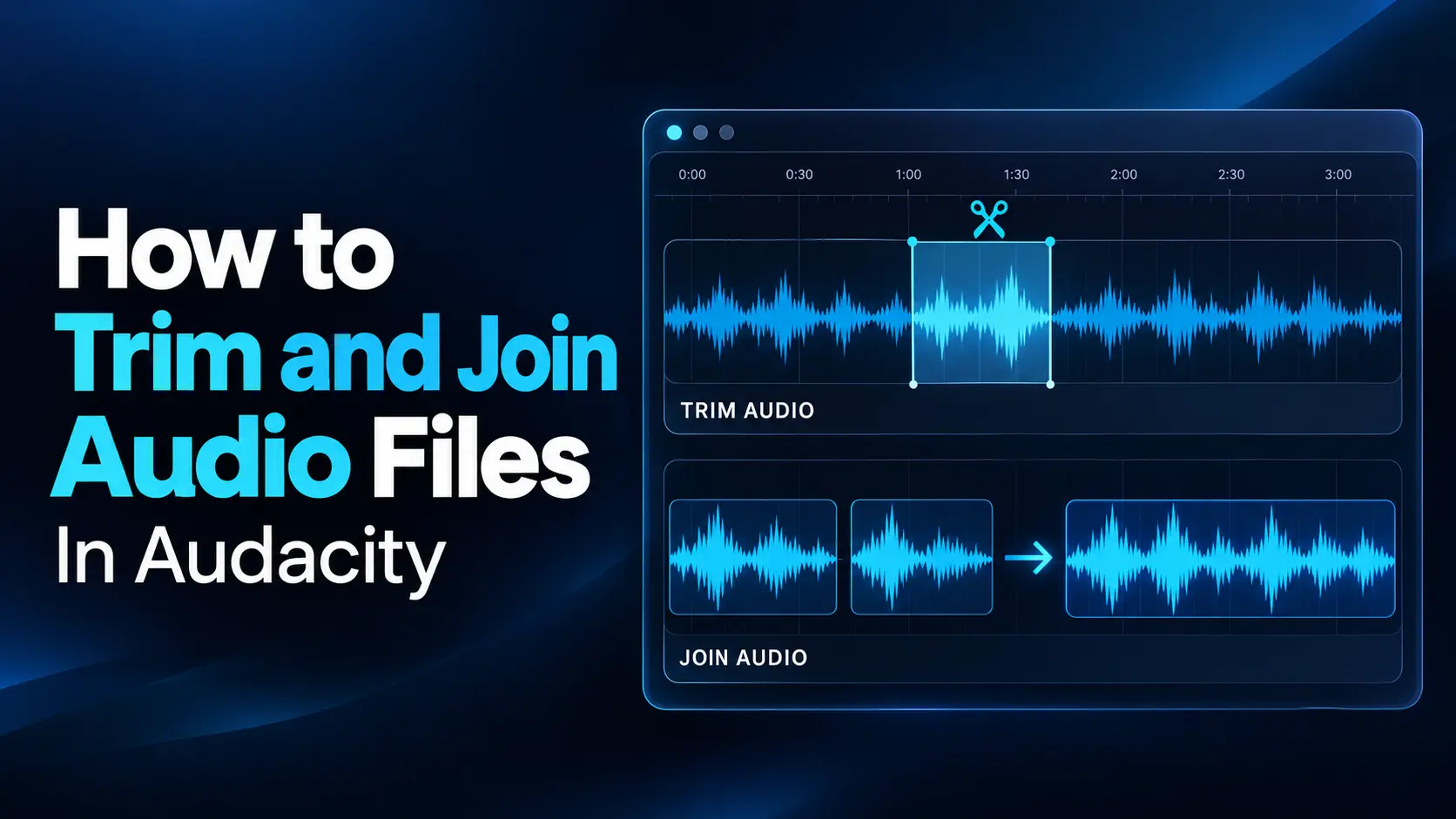
Audacity provides the tools to make these changes on Windows, Mac, and Linux. You can shorten recordings, remove unwanted sections, arrange files in sequence, and export the result as one playable audio file.
The basic workflow is to import your recordings, trim the sections you want to keep, position them in the correct order, check the transitions, and export the finished audio.
This guide explains the process for beginners. Menu wording differs between Audacity 3 and Audacity 4, so relevant differences are noted below.
Understand Tracks, Clips, and Audio Files
Before editing, it helps to understand three terms:
- Audio file: A recording stored on your computer, such as an MP3 or WAV file.
- Track: A horizontal lane inside Audacity that holds audio.
- Clip: A block of audio positioned on a track.
Importing several files usually creates separate tracks. If those tracks all begin at the same point, they play at the same time. To make the recordings play one after another, you must arrange their clips sequentially.
Also distinguish joining clips inside the project from exporting one finished file. Your project can contain several tracks and clips while still producing a single MP3 or WAV export.
| Action | Purpose | Example |
|---|---|---|
| Trim | Keep the wanted portion of a clip | Remove silence before and after a voice recording |
| Delete | Remove selected audio | Remove a repeated sentence |
| Split | Divide audio into independently editable clips | Separate an introduction from the main recording |
| Join clips | Combine selected clips on the same track | Merge adjacent edited sections into one clip |
| Export | Create a playable audio file from the arrangement | Produce one finished MP3 |
1. Import Your Audio and Save a Project
Download Audacity from the official Audacity website if you do not already have it installed.
- Open Audacity and create a project.
- Drag your audio files into the project window.
- Alternatively, use File > Import; in Audacity 3, choose Audio from that submenu.
- Play each recording briefly to confirm that it imported correctly.
- Save the project before making substantial changes.
Common formats such as WAV and MP3 can be imported directly. Other formats, including some M4A workflows, may require the optional FFmpeg library. Follow Audacity’s FFmpeg installation instructions if the application requests it.
Keep the original recordings separately. The project preserves your editing work: Audacity 4 uses .aup4 projects, while Audacity 3 uses .aup3. Neither is a replacement for an exported audio file that other apps can play.
2. Trim Silence from the Beginning and End
Dragging a clip’s edges is a convenient way to shorten it while retaining the ability to adjust the edit.
- Zoom in until you can identify where the useful audio starts.
- Select the clip.
- Move the pointer to its left trim edge or handle.
- Drag the edge inward to hide the unwanted opening audio.
- Repeat at the right edge to shorten the ending.
- Listen to both boundaries.
In Audacity 4, use the upper trim handles. The lower handles marked with a clock change playback speed, which is a different operation.
Edge trimming hides audio rather than immediately destroying it. You can usually reveal it again by dragging the edge outward in the editable project.
Leave enough room around speech to preserve the first consonant and the end of the last word. A tightly cropped waveform can look neat while sounding rushed or incomplete.
If trimming leaves the clip starting several seconds into the timeline, move it to the beginning unless you intentionally want leading silence.
3. Keep Only a Selected Section
Selection-based trimming is useful when you know exactly which passage you want to retain.
- Click and drag across the waveform to select the wanted passage.
- Play the selection to check its boundaries.
- In Audacity 4, choose Edit > Clip > Trim clip.
- In Audacity 3, use Edit > Remove Special > Trim Audio.
- Listen again and undo the edit if you removed too much.
Trim keeps the selected passage. Delete removes it. Confusing these commands is a common beginner mistake.
For example, imagine a 40-second recording where the useful answer runs from approximately 6 seconds to 31 seconds. Select that answer, preview it, and trim. The retained passage is approximately 25 seconds long.
Check for other clips outside the edited region. Trimming one clip does not necessarily remove every unrelated clip elsewhere in the project.
4. Remove a Mistake from the Middle
To remove a cough, repeated phrase, or false start, select the unwanted section and delete it. Decide whether the remaining audio should stay in place or move together.
Audacity 4 can use either Leave gap or Close gap behavior. Closing the gap is useful for shortening a single spoken recording. Leaving it preserves the timing of later material.
- Select the mistake, including only the surrounding pause you want removed.
- Preview the selection.
- Delete it with the appropriate gap behavior.
- Play several seconds before and after the edit.
- Adjust the boundary if the sentence sounds unnatural.
When editing audio synchronized to video or another microphone recording, avoid moving one track independently without checking synchronization.
Do not remove every breath or pause. Natural speech needs rhythm, and a small pause can make an edit less noticeable than an abrupt word-to-word cut.
5. Arrange Audio Files One After Another
Import all the files into the same project, then trim each one before arranging the sequence. Give the clips descriptive names such as “Introduction,” “Main section,” and “Closing.”
Manual Arrangement
- Place the first clip at the beginning of the timeline.
- Drag the second clip by its header so it starts when the first finishes.
- Position the third clip after the second.
- Zoom in at each boundary to check for gaps or overlaps.
- Play the complete sequence.
The clips can remain on separate tracks. Their horizontal positions determine when they play.
Drag the clip header to move it. Dragging across the waveform normally selects a time range instead. If snapping prevents precise placement, adjust or disable the snap grid.
For example, a 12-second introduction followed by a 45-second explanation and an 8-second closing creates approximately 65 seconds of audio when arranged without gaps or overlaps.
Automatic End-to-End Alignment in Audacity 3
If each imported file occupies its own track, arrange the tracks in the desired top-to-bottom order. Select those tracks and choose Tracks > Align Tracks > Align End to End.
The first selected track keeps its position, and the others follow it in sequence. Move the first clip to the beginning beforehand if you do not want initial silence.
Alignment commands differ across versions and may be unavailable in some Audacity 4 builds. Manual positioning provides an alternative when the command is missing or disabled.
6. Join Adjacent Clips on the Same Track
Joining clips is optional when your goal is simply to export one file. Use it when you want adjacent pieces to become a single clip inside the project.
- Place the clips next to each other on the same track.
- Select a time range that spans the clips you want to join.
- In Audacity 4, choose Edit > Clip > Join selected clips.
- In Audacity 3, choose Edit > Audio Clips > Join.
- Check the resulting clip and listen across the former boundary.
Joining is not a substitute for arranging the audio. Close unwanted gaps first, and do not expect the command to automatically repair clicks, match volume, or create a smooth transition.
7. Make the Transitions Sound Natural
Listen Beyond the Exact Join
Play a few seconds on both sides of an edit. Listening only to the boundary can hide a problem with sentence timing or musical phrasing.
For speech, check that you have not removed a syllable or created an awkward breath. For music, pay attention to rhythm, sustained notes, and reverb tails.
Use Short Fades Where Needed
An abrupt change in the waveform can produce a click. A very short fade at an exposed clip boundary may soften it.
Select a short ending region and apply Fade Out, or select a short beginning region and apply Fade In. These effects are available in the Effect menu’s fading section; Audacity 4 also provides editable clip-gain curves.
Start with a small adjustment and listen. A long fade on a spoken word may remove the very sound you wanted to preserve.
Use Crossfades for Overlapping Transitions
A crossfade gradually lowers one recording while raising another. It can help connect music or ambience.
Place the outgoing audio on one track and the incoming audio on another. Create a short overlap, fade the outgoing section down, and fade the incoming section up. Where available, Audacity’s Crossfade Tracks effect can process the selected overlap.
Keep spoken words from overlapping unless that is intentional. Also check the combined volume: overlapping audio can become louder than either track alone.
8. Match Volume Between Recordings
A quiet clip followed by a loud one can make a joined recording uncomfortable to hear. Compare the clips at a consistent listening volume before exporting.
Adjust track or clip gain where necessary. If you use Loudness Normalization to match separate recordings, process the relevant sections individually toward a suitable common target, then listen again.
Normalizing the entire finished sequence in one operation does not necessarily correct differences between its sections.
Peak normalization and loudness normalization serve different purposes. Matching maximum peaks does not guarantee equal perceived loudness. A recording with one loud clap can have the same peak as another recording while its speech remains much quieter.
Watch the playback meter and avoid output clipping. Raising a noisy recording also raises its background noise; volume adjustment alone does not improve recording clarity.
9. Export the Finished Recording as One File
Save the editable project, then export a separate listening copy.
- Check the arrangement and remove or mute unwanted material.
- Confirm that Solo is not accidentally excluding other tracks.
- Choose File > Export Audio.
- Select Export full project audio in Audacity 4 or Entire Project in Audacity 3.
- Choose the filename, destination, and audio format.
- Review channel and encoding settings, then export.
- Open the exported file in a separate player and check it.
Selecting a current-selection export instead can produce only the highlighted passage. Always check the export range when the finished file is unexpectedly short.
| Format | Useful for | Consideration |
|---|---|---|
| PCM WAV | Further editing and video production | Larger files without lossy audio compression |
| FLAC | Lossless storage where supported | Check compatibility with the receiving application |
| MP3 | Convenient sharing and broad playback support | Lossy compression; avoid repeated export-and-edit cycles |
Exporting an MP3 source to WAV does not restore detail already lost through MP3 compression. It can, however, avoid another lossy encoding step while you continue editing.
Common Problems and Simple Fixes
- All files play together: Move the clips into a sequential arrangement instead of leaving them at the same start time.
- There is silence between sections: Zoom in and check both the space between clips and silence inside their edges.
- The clip changes speed: Undo the action and use the trim handle rather than a stretch handle.
- Join is unavailable: Check that you selected suitable adjacent clips on the same track.
- The exported file misses a section: Review the export range, muted tracks, and Solo settings.
- An edit sounds abrupt: Restore a little breathing room, move the boundary, or test a short fade.
Frequently Asked Questions
1. Can Audacity combine MP3 and WAV files?
Yes. Import the files into one project, edit their positions, and export the arrangement in your chosen format. Different source formats do not require separate projects.
2. Do I need to merge every clip before exporting?
No. Audacity can render an arrangement containing multiple clips and tracks into one finished file. Joining clips mainly changes how the audio is organized inside the project.
3. Does trimming permanently delete the original recording?
Normal project editing does not overwrite the source file. Edge trimming also retains hidden audio within the editable project. Keep your source files and export under a new name.
4. Can Audacity join MP3 files without re-encoding?
Audacity’s normal MP3 workflow decodes the imported audio and encodes a new MP3 during export. It is not a direct compressed-stream joining tool. Complete your edits in the project and export the MP3 once.
5. Why is my saved Audacity project not playing on my phone?
An Audacity project is an editing document, not a normal listening file. Export the finished recording as a supported format such as MP3, then transfer that exported file to your phone.
