 MediaRar
Related Articles
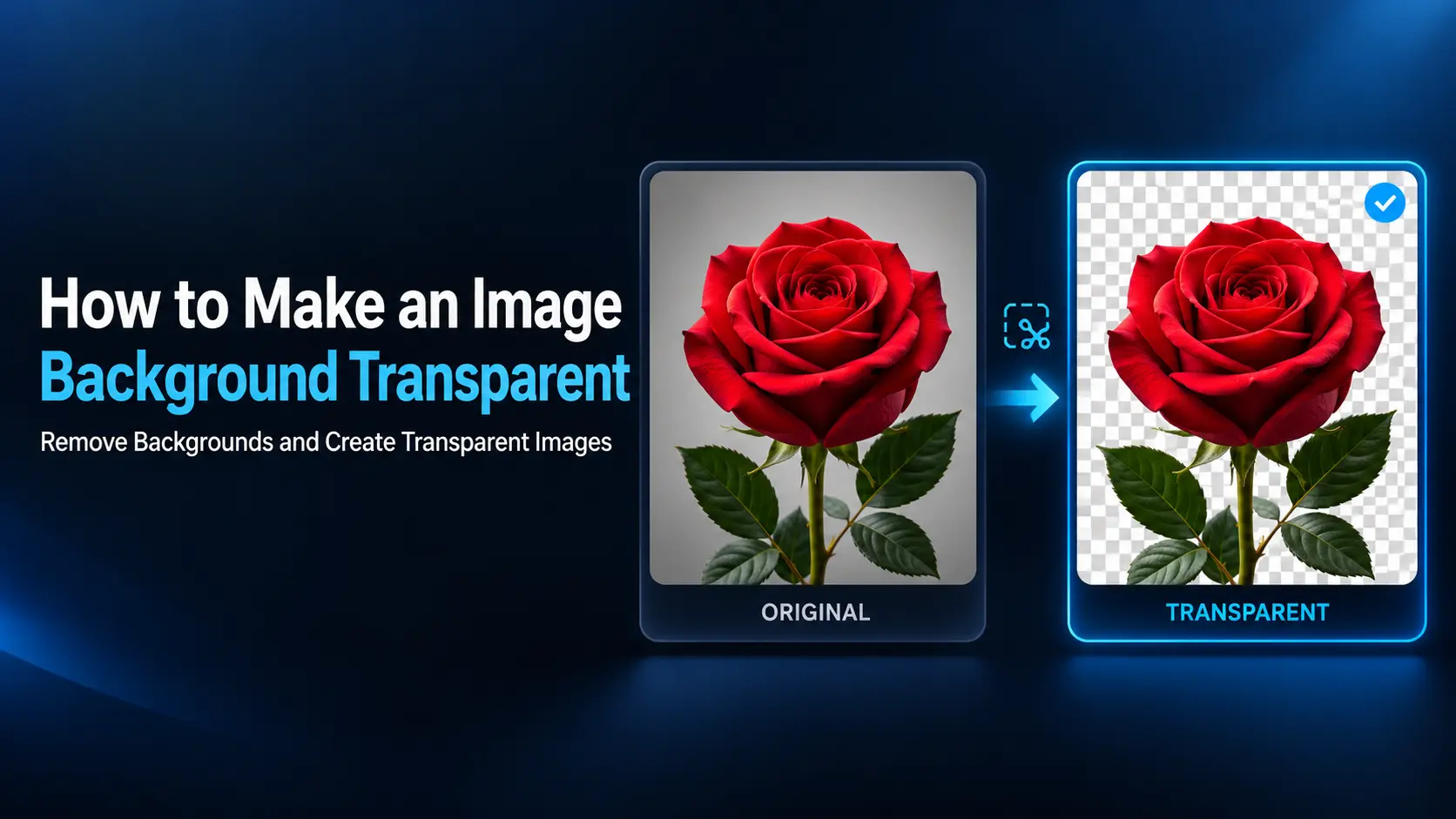
Making that background transparent lets the surrounding design show through. It is useful for logos, product cutouts, presentation graphics, thumbnails, and images placed over video.
To make an image background transparent, remove or mask the unwanted background, clean up the subject’s edges, and export in a format that supports transparency, such as PNG.
Simply converting a JPG to PNG does not remove its background. This guide explains the editing step, practical tools for Windows and Mac, and how to check that the final file is genuinely transparent.
What Does a Transparent Background Mean?
A transparent area allows content behind the image to remain visible. It is different from a white background, which is still a solid color covering whatever sits underneath.
Many image formats represent transparency through an alpha channel. This describes how opaque each pixel is. Pixels can be fully visible, completely transparent, or partially transparent.
Partial transparency helps preserve soft shadows, smooth edges, and fine details. A good cutout does not always have a completely hard outline.
Image editors commonly display transparent areas as a checkerboard. That pattern is normally an editing aid, not part of the exported picture. However, a downloaded image can have a checkerboard painted into its pixels, so appearance alone is not proof.
Choose a Method That Fits Your Image
| Image type | Useful starting method | What needs attention |
|---|---|---|
| Person or clearly separated object | Automatic background removal | Hair, fingers, straps, and small details |
| Logo on a plain background | Color-based selection | Background-colored areas inside the logo |
| Object against a busy scene | Foreground selection and a layer mask | Similar colors along the boundary |
| Glass, smoke, or translucent fabric | Detailed masking and compositing | Partial transparency and background reflections |
Start with the largest, clearest original available. A small screenshot or heavily compressed copy makes accurate selection more difficult, especially around hair and lettering.
Keep the original file and save your cutout separately. If the editor supports layers and masks, preserve an editable project as well as the exported image.
Method 1: Remove the Background in Windows 11 Paint
Current Windows 11 versions of Microsoft Paint include automatic background removal and support for transparent PNG files.
- Open Paint and load your image using File > Open.
- Find the Remove background button in the toolbar.
- Click it and let Paint identify the foreground subject.
- Inspect the result, especially small details and the outline.
- Undo and try again if important parts were removed.
- Choose File > Save as and select PNG.
- Save with a new filename.
Paint can also apply background removal within a rectangular selection. This can help focus the operation on a particular area.
Check that no visible background layer or canvas background is filling the transparent area before saving. Transparent portions should show through to the editor’s transparency display.
If the button is missing, check for Paint updates in Microsoft Store. Older Paint versions do not provide the same background-removal and transparency features.
This method is convenient for a clear subject, but inspect the result before publishing. Automatic removal may miss narrow gaps or mistake similarly colored clothing for background.
Method 2: Make a Background Transparent in Mac Preview
Supported versions of Preview include a Remove Background button, allowing you to create a cutout without installing another editor.
- Open the image in Preview.
- Choose File > Duplicate to work on a copy.
- Click the Remove Background button.
- If Preview asks to convert the copy to PNG, accept the conversion.
- Inspect the subject and its edges.
- Save the result as PNG, using File > Export if necessary.
Use Edit > Undo if the automatic result removes something important. The available controls depend on your macOS version.
Apple also documents a Smart Lasso tool for extracting a selected subject. For complicated backgrounds that need repeated corrections, a layer-based editor may be easier to control.
See Apple’s background removal guide for Preview for the controls available in your version.
Method 3: Remove a Plain Background in GIMP
GIMP is a free image editor available for Windows, Mac, and Linux. Its selection tools work well when you want more control over the cutout.
Add Transparency Support to the Layer
- Open the image in GIMP.
- Select its image layer in the Layers panel.
- Choose Layer > Transparency > Add Alpha Channel.
- If the command is unavailable because the layer already has an alpha channel, continue.
The alpha channel allows cleared pixels to become transparent. Without it, deleting image content can replace that content with a background color instead.
Select and Remove the Background
- Choose Tools > Selection Tools > Fuzzy Select.
- Click a plain area of the background.
- Adjust the tool’s Threshold until the selection covers the intended area without entering the subject.
- Use the selection tool’s add mode to include disconnected background regions when needed.
- Press Delete to clear the selection.
- Choose Select > None and inspect the result.
Fuzzy Select follows connected areas with similar colors. A lower threshold selects a narrower range; a higher threshold can include more background but may also capture parts of the subject.
For example, a dark symbol on white is often easier to isolate than a white shirt photographed against a white wall. In the second case, color alone cannot reliably identify the boundary.
Check enclosed spaces, such as the center of a letter or the gap inside a handle. Removing the outer background may leave these areas untouched.
Use a Layer Mask for Easier Corrections
A layer mask controls which parts of an image remain visible without requiring you to erase those pixels. It is useful when the outline needs several rounds of correction.
In GIMP, you can turn a subject selection into a mask:
- Select the subject you want to keep.
- If you selected the background instead, choose Select > Invert.
- Choose Layer > Mask > Add Layer Masks.
- Initialize the mask from Selection, then add it.
- Click the mask thumbnail in the Layers panel to edit the mask.
- Paint black on the mask to hide unwanted areas and white to restore missing parts.
- Save an editable GIMP project before exporting.
Use a small brush around detailed boundaries. Make sure you are painting on the mask thumbnail rather than directly coloring the image.
For a subject against a complex scene, GIMP’s Foreground Select tool offers another starting point. You outline the subject and mark foreground information to help the tool separate it from the surrounding scene.
How to Clean Up the Edges
Test on Both Light and Dark Backgrounds
A cutout can look clean on white while showing a pale outline on black. Place temporary solid-color layers beneath the subject to reveal leftover pixels.
Try white, dark gray, and a contrasting color. Inspect the image at normal viewing size as well as while zoomed in. Hide those test layers before exporting the transparent version.
Remove Halos Without Cutting Away the Subject
A halo is a visible fringe around the cutout. It often contains pixels that blended the subject with the original background.
Correct small problem areas on the mask rather than repeatedly deleting a wide border. For firm-edged products, a slight inward adjustment may help. For hair or fur, aggressive shrinking can remove genuine detail.
Editors with dedicated edge-refinement controls can offer better results for difficult subjects. Adobe’s hair selection guidance describes tools designed for these fine boundaries.
Avoid Excessive Feathering
Feathering softens a selection boundary. A small amount can make an edge more natural, but too much can make a logo or product look blurry.
Match the softness to the original image. Sharp printed lettering should not have the same edge treatment as out-of-focus hair.
Decide Whether to Keep Shadows
A product may look more realistic with a soft shadow, but that shadow must work on the intended background.
For example, a shoe cutout with a heavy shadow from its original photograph may look strange on a bright promotional banner. Keeping the shoe and rebuilding a separate shadow can provide more flexibility.
Glass, smoke, and translucent materials are harder because their appearance already includes the original surroundings. Removing the outer background alone cannot perfectly reconstruct what those materials would look like against every new scene.
Export in a Format That Preserves Transparency
PNG is a practical default for a reusable transparent image. WebP is another option when the destination supports it. Standard JPEG does not retain transparency.
| Format | Transparency | Typical use |
|---|---|---|
| PNG | Supports full and partial transparency | Logos, cutouts, overlays, and general sharing |
| WebP | Supports full and partial transparency | Website images where supported |
| GIF | Supports fully transparent palette entries, without smooth partial transparency | Simple graphics and some animations |
| JPG/JPEG | No standard alpha transparency | Photos with an intentional solid background |
In GIMP, choose File > Export As, enter a filename ending in .png, and export. Keep an alpha-capable pixel format, such as RGBA, if you change the export settings.
Do not flatten the image onto a solid background before exporting. Also check that a backup layer underneath the cutout is hidden; otherwise that layer can make the whole image opaque again.
PNG compression level changes storage efficiency and processing time without introducing lossy image compression. Resizing the image or reducing its colors is a separate operation that can change its appearance.
How to Check Whether Transparency Really Worked
- Reopen the exported file in an editor that supports transparency.
- Place a colored layer underneath it.
- Confirm that the color shows through the removed area.
- Check the edges and small internal gaps.
- Test the image in the website, presentation, or video editor where you plan to use it.
A viewer may display transparent pixels against white or black. That display color does not necessarily mean the file has lost transparency.
The colored-layer test is more reliable: if a white rectangle or checkerboard remains visible over the new color, those pixels are probably part of the image.
Upload or insert the actual exported file. Taking a screenshot of the cutout captures the viewer’s background and usually produces a new opaque image.
Common Problems and Simple Fixes
- The background returns after saving: Check the output format and look for a visible solid layer underneath the subject.
- Deleting paints the area white: Add an alpha channel or use an editor with transparency support.
- Part of the subject disappears: Undo, lower the selection threshold, or restore it through a mask.
- The cutout has a white outline: Inspect edge pixels against a dark background and refine the mask.
- A checkerboard appears on the website: Confirm that the checkerboard is not baked into the downloaded image.
- The exported image looks soft: Check whether the tool reduced its dimensions or applied excessive edge feathering.
Can You Use an Online Background Remover?
Yes. A browser-based service can be convenient for occasional cutouts. The usual process is to upload an image, run background removal, correct the result, and download a transparent file.
Before spending time on a detailed edit, check whether the service allows full-resolution transparent downloads under your chosen plan. Some previews look sharp on screen while the downloadable file has fewer pixels.
Also check how the tool processes images. Some upload files to a server, while others work locally in the browser. For personal or confidential pictures, choose a workflow whose handling you understand.
Frequently Asked Questions
1. Can I make a JPG background transparent?
You can open a JPG, remove its background, and export the result as PNG or another transparency-capable format. Saving the final result as JPEG will not preserve transparent pixels.
2. Does converting an image to PNG remove its background?
No. Conversion changes the file format. You still need to remove or mask the background before exporting.
3. Can I remove a background for free?
Yes. GIMP is a free option, and supported versions of Windows Paint and Mac Preview include background-removal tools. More complicated subjects may require manual cleanup.
4. Why does my transparent PNG look white?
The viewer may be showing transparency over a white display background. Test the file over a colored layer. If the white rectangle remains, check for opaque pixels or a background layer included during export.
5. Will removing the background reduce image quality?
Background removal does not require reducing the image dimensions. However, inaccurate selections can damage edges, and some tools resize their output. Keep the original resolution where practical and inspect the exported file.
