 MediaRar
Related Articles
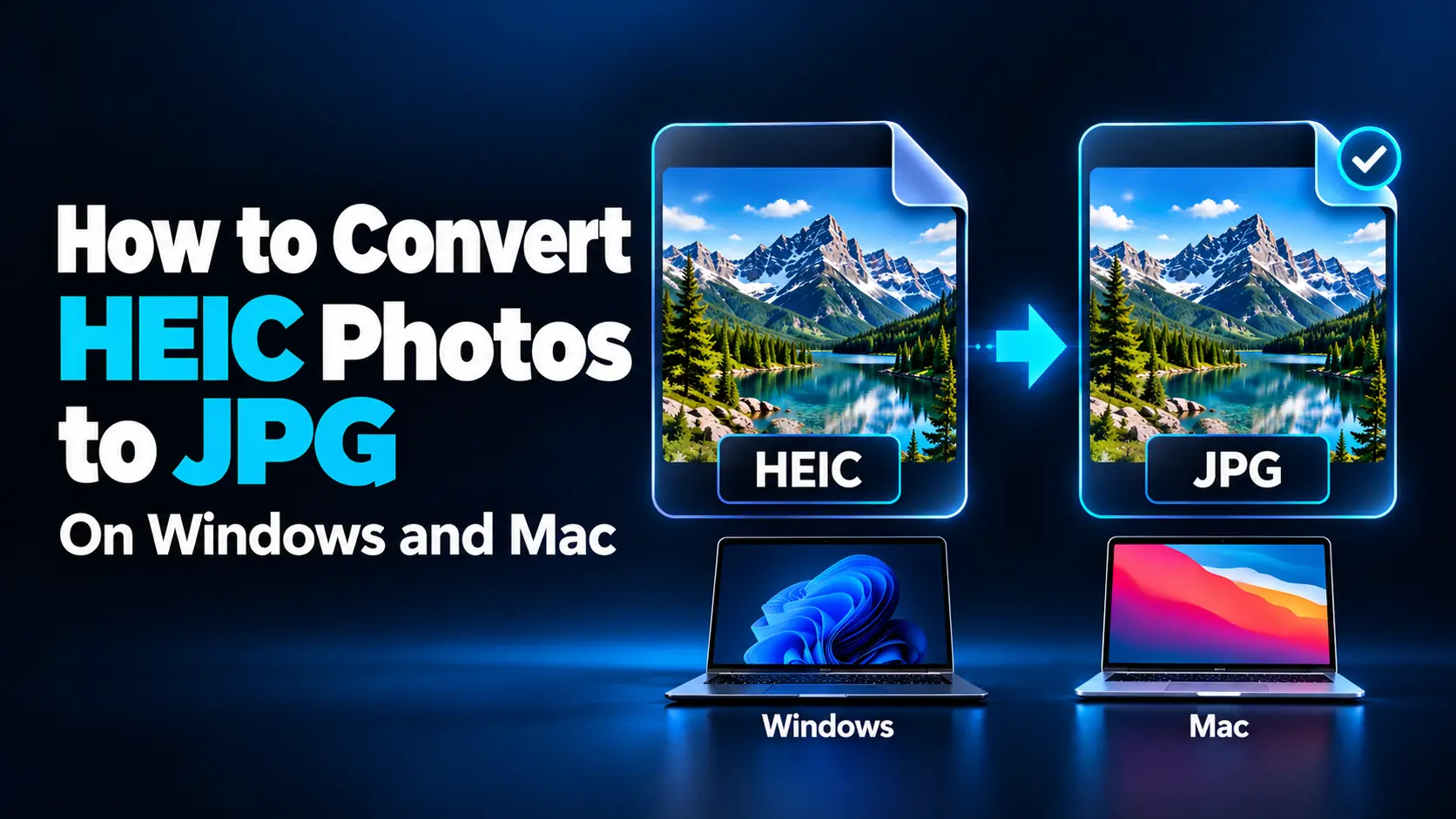
This usually happens because the receiving software does not support the image format. Converting the photos to JPG creates copies that work with a wider range of websites, photo editors, printing services, and older devices.
On a Mac, you can convert HEIC photos using Preview or Finder. On Windows, a dedicated desktop converter offers a straightforward option. If your pictures are already in iCloud Photos, you can also download JPEG copies through a browser on either platform.
This guide explains each method, how to process multiple photos, and which settings deserve attention before you convert an entire folder.
What Is an HEIC Photo?
HEIC is a filename extension commonly used for images stored using the High Efficiency Image File Format, or HEIF. Many iPhones use this format because it can store detailed photographs efficiently.
JPG and JPEG refer to the same image format. The different filename endings do not indicate different quality levels. A photo named holiday.jpg can use the same encoding as one named holiday.jpeg.
The main reason to convert HEIC to JPG is compatibility. JPEG is widely supported by browsers, document software, and services that accept photo uploads.
However, conversion is not necessary for every image. If your current devices and apps already handle HEIC correctly, you can keep the originals and create JPG copies only when needed.
Choose the Right Conversion Method
| Your situation | Suggested method | Main advantage |
|---|---|---|
| You have a few photos on a Mac | Preview export | Built-in tool with JPEG quality controls |
| You want a quick conversion in Finder | Convert Image quick action | Convert directly from your files |
| You have a folder of photos on Windows | A desktop HEIC converter | Batch processing and output settings |
| Your photos are already in iCloud Photos | Download using Most Compatible | Works through a browser on Windows or Mac |
Before You Start: Keep the Original Files
Create a separate destination folder, such as “JPG Copies,” before converting your pictures. Leave the HEIC files in their original location or backup.
This makes it easier to compare results and try different settings without repeatedly compressing the same JPEG. It also keeps the original available if you later need features or information that the exported copy does not retain.
Check that cloud-stored photos have finished downloading. A thumbnail visible in a folder does not always mean the complete original is available locally.
Do not simply rename .heic to .jpg. Changing the extension changes the filename, not the image data. A proper conversion app must read the original image and encode a new JPEG file.
How to Convert HEIC to JPG on Windows
Use a Desktop Converter for Single Photos or Batches
One option is iMazing Converter, a dedicated application available for Windows and Mac. Its developer offers it free and states that image conversion runs locally on your computer.
- Download and install iMazing Converter from its official website.
- Open the application.
- Drag your HEIC photos, or a folder containing them, into the window.
- Select JPEG as the output format.
- Choose your image quality and resolution settings.
- Review whether you want to preserve EXIF metadata.
- Click Convert and choose your destination folder.
- Open several finished JPG files to check the results.
For the first attempt, keep the original pixel dimensions and choose a high-quality setting. Test a few pictures before processing a large collection.
A useful sample includes a portrait, a detailed outdoor scene, and a photo containing small text. These subjects reveal different problems, such as softened edges, compression artifacts, or changes in skin tones.
What If Windows Cannot Open the Original HEIC?
Some Windows apps rely on installed format extensions to read HEIC files. Microsoft documents the use of HEIF Image Extensions together with HEVC Video Extensions for its Photos workflow. HEVC support can be necessary for these photographs even though they are still images.
If Photos requests an extension, follow Microsoft’s official guidance. Check the publisher and current Store terms before installing; the HEVC extension may require payment.
Installing decoding support lets compatible software read the photo. It does not automatically turn your existing HEIC files into JPG files. You still need an export or conversion step.
How to Convert HEIC to JPG on Mac Using Preview
Preview is included with macOS and offers a convenient way to export individual photos.
- Find the HEIC photo in Finder.
- Control-click it and choose Open With > Preview.
- In Preview, select File > Export.
- Choose JPEG from the Format menu.
- Adjust the Quality slider.
- Enter a filename and choose your destination folder.
- Click Save.
Use Export rather than Export as PDF. If the format you need is missing, Apple suggests holding the Option key while opening the Format menu to reveal additional choices.
Preview also supports converting multiple images: open the files together in one window, select their thumbnails in the sidebar, and use the export workflow. Confirm that all intended photos are selected before proceeding.
Apple’s Preview conversion guide explains the available formats and batch approach.
How to Convert HEIC Photos Directly in Finder
Finder’s Convert Image quick action is useful when you want a fast format change without opening an editor.
- Select the HEIC file or files in Finder.
- Control-click the selection and open Quick Actions.
- Choose Convert Image. Depending on your interface, look under More.
- Select JPEG as the format.
- Choose the original or actual image size if you want to preserve the pixel dimensions.
- Review the available metadata option and complete the conversion.
Available actions depend on your macOS version, selected file types, and enabled extensions. If Convert Image is unavailable, use Preview instead.
See Apple’s Finder quick actions guide for additional details.
How to Download JPG Copies from iCloud on Windows or Mac
If the photos are already stored in iCloud Photos, you can request a compatible download without installing another conversion application.
- Visit iCloud Photos and sign in to your Apple Account.
- Select the pictures you want to download.
- Open the More menu and choose More Download Options.
- Select Most Compatible.
- Click Download.
- If the download arrives as a ZIP archive, extract it before using the images.
Apple identifies Most Compatible as the JPEG option for photos. Unmodified Originals preserves the captured or imported format, so that option can give you HEIC files again.
This method requires the pictures to be available in your iCloud library. For a local folder that has never been uploaded, Preview or a desktop converter is usually more direct.
Check the downloaded image dimensions before sending photos for printing or another task with specific resolution requirements.
How to Preserve Good Image Quality
Understand That JPEG Conversion Is Lossy
Ordinary JPEG encoding uses lossy compression. It discards some image information to reduce storage requirements. A high-quality conversion can look very similar to the original, but it is not an identical archival replacement.
A maximum-quality setting also does not guarantee lossless conversion. Keep the HEIC original when preserving the source matters.
Keep Resolution and Quality Separate
Resolution controls how many pixels the image contains. JPEG quality controls how aggressively those pixels are compressed. Reducing either setting can affect the result, but they do different things.
For example, a hypothetical 4032-by-3024 photo can remain 4032 by 3024 after conversion. Reducing it to 1600 by 1200 is a separate resizing decision. That smaller copy may work for an upload, but it provides less detail for cropping or large prints.
Compare at the Same Viewing Size
Open the HEIC and JPG in a compatible viewer and compare them at the same zoom level. Inspect hair, foliage, lettering, and smooth gradients. Also check the picture at the size people will actually view it.
If the JPG looks worse, return to the HEIC and export again with a higher quality setting. Increasing the quality of an already damaged JPG cannot restore discarded detail.
Check Color and Brightness
Some HEIC photos use wide color or HDR information. Their appearance can change when a converter produces a conventional JPEG or when another viewer handles color differently.
If colors look washed out or highlights change, check the converter’s color-management and HDR options. Use an application that explicitly supports your source image’s features, and compare the result on the intended display.
Why Can the JPG Be Larger Than the HEIC?
Converting to a more compatible format does not necessarily make a smaller file. HEIC can store comparable visual detail more efficiently than JPEG, so a high-quality JPG may require more space.
File size also depends on the photograph itself. Fine texture, image noise, and complex scenes can require more data than simple backgrounds.
If a website has an upload limit, first check its required dimensions. Create a separate upload copy at a suitable size, then adjust JPEG quality gradually. Keep a larger version for uses that need more detail.
What Happens to Dates, Location, and Other Metadata?
Photos may contain EXIF metadata, including capture dates, camera information, and GPS coordinates. What survives conversion depends on the application and its settings.
Preserving capture dates can help organize a collection. Removing location information may be preferable before publishing personal photos. Review the converted file rather than assuming the metadata was retained or removed.
Also distinguish the date the photograph was taken from the date the new JPG file was created. Your file manager may show the conversion date even when the original capture date remains embedded.
A single JPG is a still image. It does not preserve the moving portion of a Live Photo or guarantee that portrait depth information and reversible editing history remain available.
Common Conversion Problems and Fixes
| Problem | What to check | Practical fix |
|---|---|---|
| The HEIC will not open | Decoder support or an incomplete download | Download the complete file and use compatible software |
| The renamed JPG still fails | The image was renamed without conversion | Restore the extension and export a genuine JPEG |
| The output looks blurry | Reduced dimensions or heavy compression | Convert the original again with larger dimensions or higher quality |
| A website rejects the JPG | Its file-size and dimension requirements | Prepare a copy that meets the stated upload limits |
| Only some photos converted | Unreadable files, duplicate names, or interrupted processing | Review errors and retry the affected images individually |
How to Take Future iPhone Photos as JPEG
On supported iPhones, open Settings > Camera > Formats and choose Most Compatible. This changes ordinary new photo captures to JPEG and also changes the associated video-format preference.
The setting does not convert existing HEIC photos. Those still need one of the methods above.
Keeping High Efficiency enabled and converting only selected images is another practical approach, especially when most of your software already supports HEIC.
Frequently Asked Questions
1. Can I convert HEIC to JPG for free?
Yes. Mac users can use Preview or Finder’s conversion action. iMazing Converter is offered free for Windows and Mac. Existing iCloud Photos users can also download JPEG copies using Most Compatible.
2. Does converting HEIC to JPG reduce quality?
JPEG introduces lossy compression, but a carefully chosen setting can preserve good visible quality. Avoid unnecessary resizing, inspect a sample, and keep the original HEIC files.
3. Can I convert many HEIC photos at once?
Yes. Desktop batch converters and Preview’s multiple-image workflow can process groups of files. Test several representative pictures first, then check the output count and any error messages.
4. Is an online HEIC converter a good option?
It can be convenient, but processing methods vary. Some tools upload images to a server; others process them in your browser. Check how the service handles files before using it for personal pictures. A local application provides a straightforward alternative.
5. Should I delete the HEIC originals afterward?
Keep them if you may need the original quality, metadata, or supported photo features later. Check your JPG copies and maintain a separate backup before making any permanent deletion decisions.
