 MediaRar
Related Articles
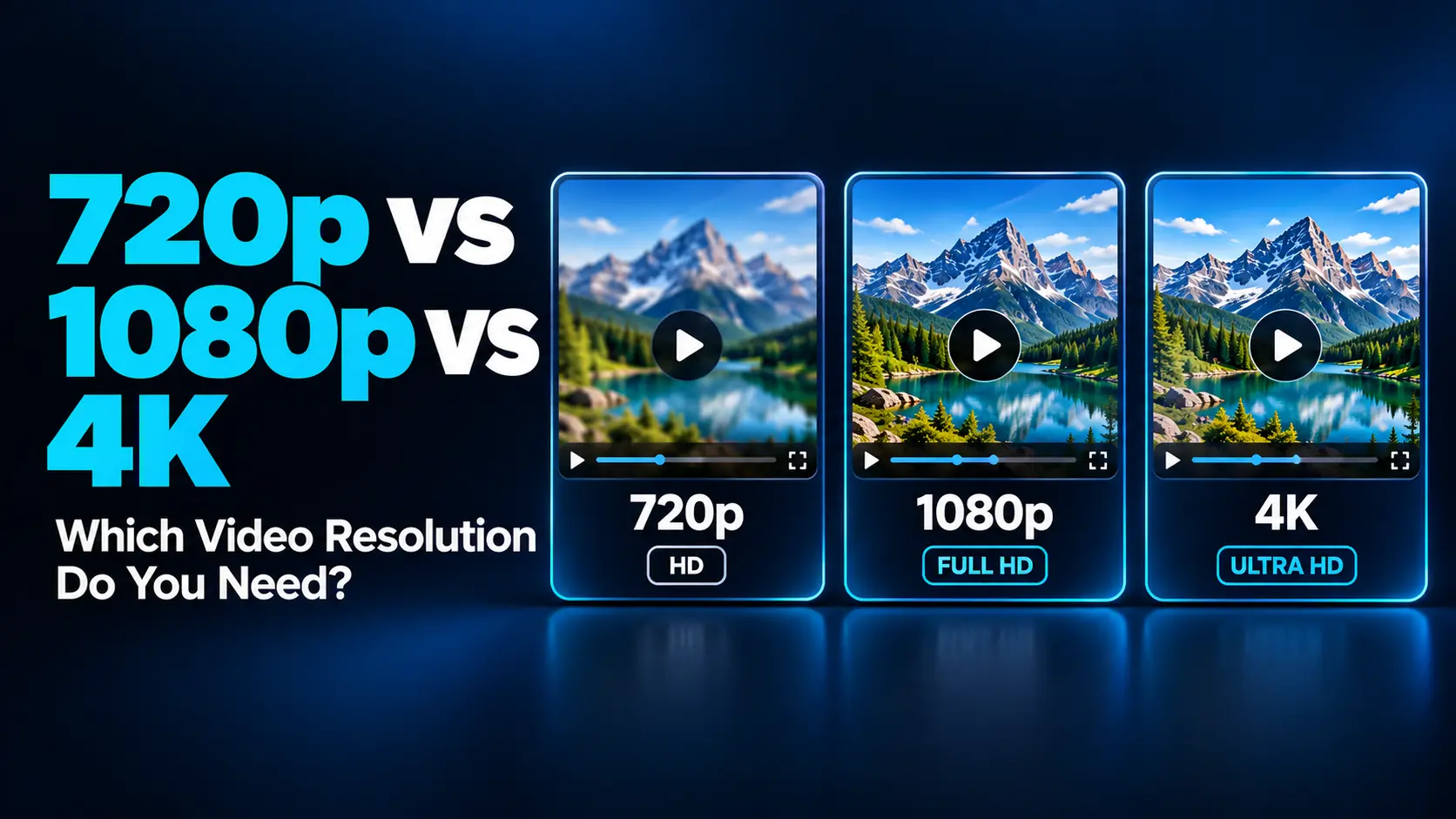
For many everyday projects, 1080p is a practical starting point. Choose 720p when reducing bandwidth or file size matters more than fine detail. Choose 4K when the footage, viewing conditions, or editing workflow can benefit from the additional pixels.
This guide explains the differences between 720p, 1080p, and 4K and shows how to make a sensible choice for watching, recording, editing, and sharing video.
720p vs 1080p vs 4K: A Quick Comparison
The dimensions below describe common landscape video with a 16:9 aspect ratio. Here, 4K means consumer 4K UHD at 3840 × 2160 pixels.
| Resolution | Pixel dimensions | Pixels per frame | Useful starting point for |
|---|---|---|---|
| 720p HD | 1280 × 720 | 921,600 | Bandwidth-conscious viewing and compact review copies |
| 1080p Full HD | 1920 × 1080 | 2,073,600 | General videos, tutorials, and everyday sharing |
| 4K UHD | 3840 × 2160 | 8,294,400 | Detailed viewing, larger displays, and editing flexibility |
1080p contains 2.25 times as many pixels as 720p. 4K UHD contains four times as many as 1080p and nine times as many as 720p.
These are pixel-count comparisons, not guaranteed differences in perceived quality or compressed file size.
What Do the Numbers and the Letter “p” Mean?
In 720p and 1080p, the number describes the vertical pixel count. The letter “p” refers to progressive scanning, where each frame contains the full set of image lines.
It does not indicate frame rate. A 1080p video might run at 24, 30, or 60 frames per second.
The term 4K refers approximately to horizontal resolution. Consumer 4K UHD is 3840 pixels wide, while digital cinema also uses a 4096 × 2160 format.
When comparing cameras, export presets, or displays, check the actual dimensions instead of relying only on a resolution label.
When Is 720p Enough?
720p can still be useful when the picture supports the message rather than carrying lots of fine detail.
Examples include a simple talking-head update, a quick review copy, or watching a video on a small screen when the connection is limited.
Consider 720p when:
- You need a smaller delivery copy.
- Your connection struggles to maintain higher-quality playback.
- The source footage is already 720p.
- The video contains little small text or intricate visual detail.
Its limitations become clearer when viewers enlarge the picture or need to read small interface labels. A screen recording of a large spreadsheet may become difficult to follow at 720p.
For that tutorial, a tighter crop or larger interface text might help more than simply increasing the export resolution after recording.
When Is 1080p the Better Choice?
1080p is a useful balance for many finished videos. It provides more room for detail than 720p while generally requiring fewer resources than a comparable 4K workflow.
It is a sensible starting point for:
- Interviews and documentary narration.
- Educational videos and software demonstrations.
- Product explanations and everyday recordings.
- Finished videos intended for mixed phone and computer audiences.
Suppose you record a presenter explaining a simple topic with occasional illustrations. Clear sound, good lighting, readable graphics, and a clean 1080p export may serve the audience very well.
However, 1080p leaves less room for aggressive cropping than 4K. If you plan to create several close-ups or portrait versions from the same wide shot, a higher-resolution recording may be worthwhile.
When Does 4K Make a Meaningful Difference?
4K can preserve more visible detail when the source contains it and the playback conditions allow viewers to see it.
It can be useful for landscapes, architecture, detailed product demonstrations, and recordings intended for close viewing on a large, high-resolution display.
For creators, its benefits also extend to editing:
- More flexibility to crop and reframe.
- Room for some stabilization adjustments.
- A higher-resolution master for future versions.
- The option to create a smaller delivery copy later.
The tradeoff is a more demanding workflow. Depending on the codec and recording settings, you may need more storage, faster media access, and additional editing or export time.
Do not assume your equipment handles every 4K mode equally well. Test the specific resolution, frame rate, and codec combination you intend to use before recording an important project.
Screen Size and Viewing Distance Affect What You Notice
The visible difference between resolutions depends partly on how large the image appears in your field of view.
Fine detail is generally easier to distinguish when you sit closer or use a larger screen. From farther away, differences can become less obvious.
This is why a video might look satisfactory on a phone but noticeably soft when shown on a large television.
However, a phone is not automatically a reason to ignore quality. Viewing distance, screen density, zooming, and the content itself still matter.
Practical test: Compare the same scene at the available resolutions on the screen you normally use, from your normal viewing position. Inspect faces, textures, and text rather than judging only a resolution badge.
Resolution Is Only One Part of Video Quality
A higher pixel count cannot compensate for every recording or encoding problem.
Focus and lighting
An out-of-focus 4K recording remains out of focus. Poor lighting can introduce noise or force the camera to use processing that removes fine texture.
Bitrate and compression
Bitrate describes how much encoded data is used over time. Too little data for the content can create blocks, smearing, and loss of detail.
A heavily compressed 4K file can look worse than a well-encoded 1080p version.
Codec and playback support
A video codec affects compression efficiency and decoding requirements. A device may handle one 4K encoding smoothly while struggling with another.
Frame rate and dynamic range
Frame rate concerns motion over time; resolution concerns spatial detail. HDR concerns the supported range of brightness and related color characteristics. A 4K label does not automatically mean 60 fps or HDR.
Judge these settings separately rather than treating resolution as a complete quality score.
How Much Larger Are 1080p and 4K Files?
Compressed file size depends mainly on duration and average total bitrate. Resolution influences the bitrate needed for a given result, but it does not determine an exact file size.
A useful estimate is:
File size in MB ≈ total bitrate in Mbps × duration in seconds ÷ 8.
The examples below use ten-minute videos and selected video bitrates. They exclude audio and container overhead and use decimal megabytes.
| Example export | Video bitrate | Approximate video data |
|---|---|---|
| 720p example | 5 Mbps | 375 MB |
| 1080p example | 8 Mbps | 600 MB |
| 4K example | 40 Mbps | 3 GB |
These are calculated examples, not fixed sizes for each resolution. Different codecs, frame rates, quality settings, and scenes produce different results.
Variable-quality workflows can also produce different file sizes for two videos with the same resolution and duration.
How Much Internet Speed Do You Need?
Streaming requirements vary by service and encoding. As one concrete example, Netflix recommends a stable connection of:
- 720p: 3 Mbps or higher.
- 1080p: 5 Mbps or higher.
- 4K: 15 Mbps or higher.
These are Netflix recommendations, not universal requirements for every video service. Other household activity also uses the connection, so allow additional capacity rather than treating a single-stream figure as the entire household requirement.
Resolution availability can also depend on the service plan, title, application, and device support.
Remember that watching and uploading use different directions of your connection. Watching depends on download delivery; uploading your finished video depends on upload performance. A slow upload does not necessarily prevent a high-quality file from being published, but it can make the transfer take longer.
Should You Record in 4K but Export in 1080p?
This can be a useful workflow when the camera and editing setup can handle it.
A 3840 × 2160 frame has twice the width and height of a 1920 × 1080 frame. You can take a 1920 × 1080 region from it and use that region in a 1080p project without enlarging the selected pixels.
That creates useful reframing room. For example, a wide interview recording can support a closer crop during an important answer.
The benefit has limits. Stabilization may already crop the frame, focus may be imperfect, and a camera’s nominal 4K output does not guarantee equally sharp detail in every pixel.
Record a short sample and try the intended crop before relying on this approach for a full shoot.
What About Vertical Videos?
Resolution and orientation are separate choices. A common vertical Full HD frame is 1080 × 1920 rather than 1920 × 1080.
If you plan to produce both landscape and vertical versions, think about composition during recording. A person standing near the edge of a wide frame may disappear in a vertical crop.
Higher-resolution footage can provide more flexibility, but it cannot solve every framing problem. Keep important action within an area that can survive the intended crops, or record a separate vertical version when practical.
Should You Choose 1080p at 60 fps or 4K at 30 fps?
These settings prioritize different things. A properly captured 60 fps video can show motion more smoothly, while 4K can preserve more spatial detail.
For sports, fast demonstrations, or other movement-heavy subjects, 1080p60 may be a useful choice. For a relatively static scene with fine visual detail, 4K30 may offer more value.
Neither setting is automatically better. Consider lighting, shutter settings, compression, and the destination’s support.
Compare representative footage containing the movement and detail your audience needs to see. A still frame alone cannot tell you which option produces the better viewing experience.
Export Settings: Use the Destination’s Guidance
YouTube recommends the following video bitrates for standard-frame-rate SDR uploads, such as 24, 25, or 30 fps:
- 720p: 5 Mbps.
- 1080p: 8 Mbps.
- 4K: 35–45 Mbps.
Its guidance uses higher values for high-frame-rate footage and recommends uploading at the recorded frame rate.
These are upload-encoding recommendations, not the bandwidth every viewer needs or the exact bitrate YouTube will deliver after processing.
For another platform, follow its own requirements. Export a short test, check the picture and sound, and avoid repeatedly recompressing an already compressed delivery copy.
A Simple Way to Choose Your Resolution
- Identify the destination: Decide whether the video is for a quick share, a tutorial, a large display, or future editing.
- Inspect the source: Check focus, noise, actual dimensions, and the detail available.
- Consider the viewer: Think about screen size, viewing distance, and connection limits.
- Plan the edit: Decide whether cropping, stabilization, or alternate layouts justify recording larger.
- Test the workflow: Confirm that recording, storage, editing, and upload are manageable.
- Compare a short sample: Choose the smallest practical version that preserves the detail the project needs.
For example, a spoken update may work well at 1080p without the extra workload of 4K. A detailed craft demonstration that needs close-ups may benefit from a 4K source even if the final delivery is 1080p.
Frequently Asked Questions
1. Is 1080p noticeably better than 720p?
It can be, particularly for small text, fine detail, and larger viewing sizes. The difference is less predictable when the source is soft, compression is heavy, or the picture occupies a small part of the screen.
2. Is 4K always four times the file size of 1080p?
No. 4K UHD has four times as many pixels per frame, but compressed file size depends on bitrate, duration, codec, and other settings.
3. Does converting 1080p to 4K create real 4K detail?
It creates a larger output frame, but ordinary upscaling does not recreate detail missing from the source. Enhancement tools may improve appearance, but their output is not equivalent to capturing genuine additional detail.
4. Do I need a 4K screen to edit 4K footage?
No. You can edit it on a lower-resolution display if your software and hardware support the footage. Inspecting the full image at native resolution requires zooming or using a suitable display.
5. Which resolution should a beginner start with?
1080p is a practical default for many projects. Use 720p when reducing delivery demands matters, and choose 4K when you have a specific need for detail, cropping room, or a higher-resolution master.
Choose Resolution Around the Job
720p, 1080p, and 4K each serve useful purposes. Match the choice to the source, destination, and details your viewers need to see.
Test before committing to a large project. A well-recorded, well-encoded video at an appropriate resolution is more useful than a larger file whose extra pixels offer little practical benefit.
