 MediaRar
Related Articles
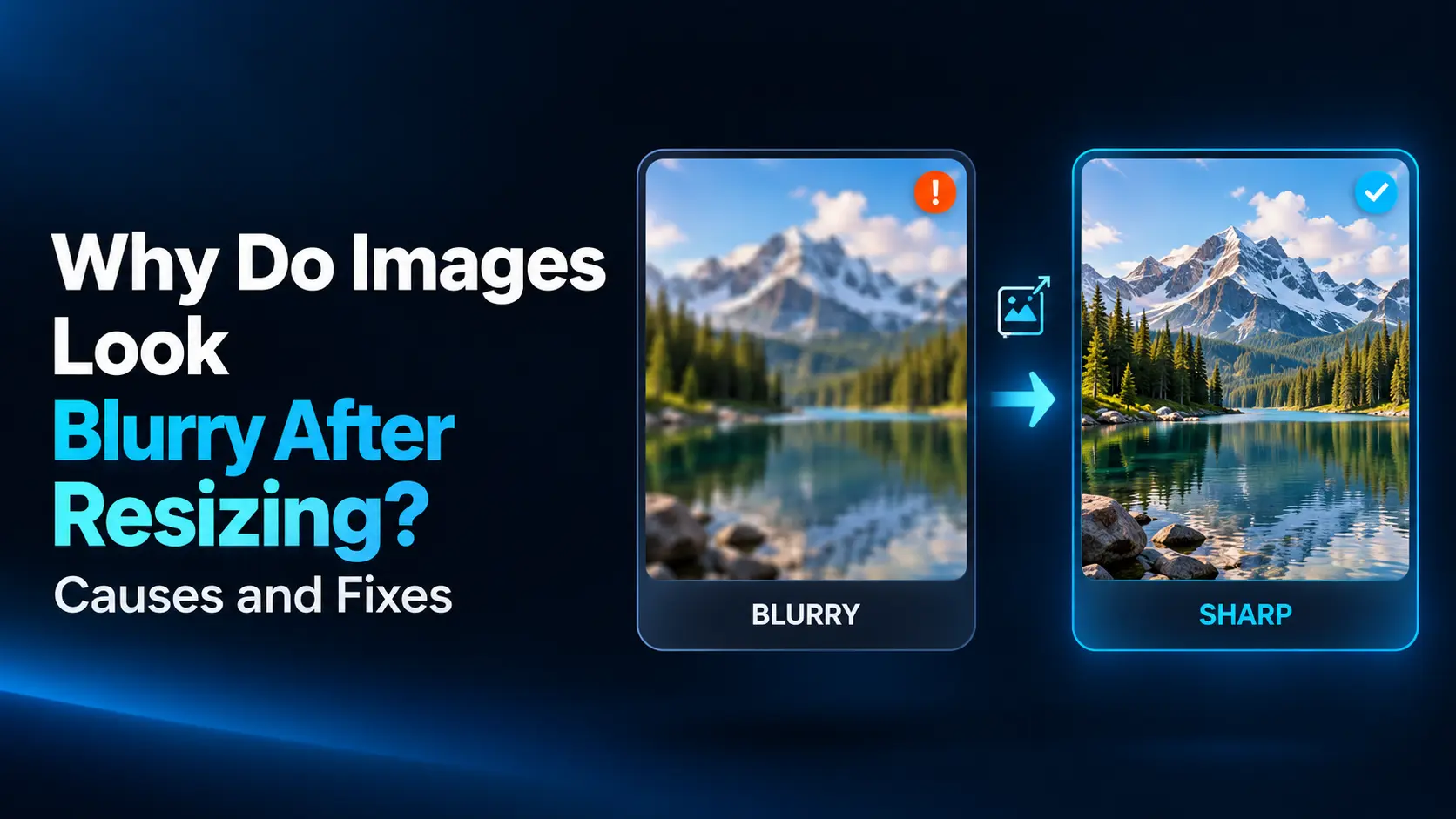
This does not always mean the resize tool is poor. The image may have been enlarged beyond its available detail, reduced too aggressively, compressed during export, or displayed incorrectly on a website.
The right fix depends on where the problem begins. This guide explains the common causes of blurry resized images and provides a practical way to diagnose them before changing settings.
First, Find Out Where the Blur Appears
Compare three versions: the original image, the exported file, and the image displayed in its final destination.
- The original is blurry: Start with a better source if one is available.
- The export is blurry: Investigate resizing and compression settings.
- Only the website version is blurry: Check the delivered image size, automatic optimization, and display rules.
View each version at a comparable size. A large original shown as a small preview may appear sharp, while a tiny export enlarged to fill your screen may appear soft. That comparison does not isolate the effect of compression.
| Symptom | Likely explanation | First check |
|---|---|---|
| The image becomes soft after enlargement | Too little source detail | Compare original and output pixel dimensions |
| Small text disappears after reduction | Too few pixels remain to describe the letters | Use a larger output or crop more tightly |
| Edges have blocks or colored smudges | Lossy compression artifacts | Compare a higher-quality or lossless export |
| The file looks good locally but soft online | The website serves or displays a smaller version | Inspect the actual image loaded by the page |
| Objects appear wide or narrow | Unequal scaling of width and height | Restore the original aspect ratio |
| Edges develop bright outlines | Excessive sharpening or resampling artifacts | Reduce sharpening and compare interpolation methods |
1. You Enlarged the Image Beyond Its Available Detail
A raster image consists of a fixed grid of pixels. Enlarging it requires the editor to calculate additional pixels between the existing ones.
For example, changing a 500 × 500 image into a 2000 × 2000 image creates sixteen times as many pixels. It does not provide sixteen times as much captured detail.
The software can make the enlargement look smoother, but ordinary interpolation cannot recover fine lettering or texture that was absent from the source.
How to fix it: Find the original camera image, a larger export, or the editable design file. If no better source exists, reduce the intended display size or redesign the layout around a smaller image.
A small portrait may work well beside a biography even if it cannot support a full-width banner.
2. You Reduced the Image Too Much
Downsizing also changes detail. Several source pixels must be represented by fewer output pixels, so thin lines, small lettering, and intricate patterns can disappear.
Imagine a screenshot containing a spreadsheet with dozens of columns. Reducing the entire screenshot to a narrow article column may leave each character only a few pixels tall.
How to fix it: Crop to the relevant area before resizing. If readers need to see the entire screen, provide an overview and separate close-ups.
For a chart, consider reducing the amount of information rather than only reducing its dimensions. Larger labels and fewer unnecessary details can communicate more effectively than a tiny copy of a complex graphic.
3. The Resampling Method Does Not Suit the Image
Image scaling uses a resampling method to calculate the new pixel grid. Different methods can produce different edges and textures.
Photographs generally benefit from methods that produce smooth tonal transitions. Pixel art often needs a method that preserves distinct blocks of color.
Photoshop, for example, offers options including Bicubic Smoother for enlargement and Bicubic Sharper for reduction. These are starting points, not a guarantee that one setting will suit every image.
How to fix it: Export two versions using suitable methods and compare important areas. Choose the result with clear detail and minimal artifacts.
For pixel art, nearest-neighbor scaling at whole-number multiples is often appropriate. Applying that same approach to a portrait can create rough, blocky edges.
4. Export Compression Is Removing Detail
An image may look good immediately after resizing but become soft when saved. That suggests the export settings deserve attention.
Lossy compression reduces file size by discarding information. Aggressive settings can soften texture, introduce blocks, and create distracting marks around text.
How to fix it: Keep the dimensions unchanged and compare different quality settings. This separates compression damage from resizing damage.
For screenshots, diagrams, and text-heavy graphics, test PNG or lossless WebP. For photographs, compare suitable JPG, WebP, or AVIF exports.
Do not assume a quality value of 80 means the same thing in every tool or format. Judge the actual output. A file-size target is not useful if reaching it makes the content difficult to understand.
5. You Are Editing a Previously Resized Copy
Repeatedly resizing an already reduced image can compound the loss of useful detail. Repeated lossy exports can add compression damage as well.
A common example is downloading a small image from a website, enlarging it for a new design, then compressing it again for publication.
How to fix it: Keep a master and create each required size from that source. Save separate outputs for thumbnails, article images, and larger detail views.
Opening, copying, or renaming a file does not itself reduce quality. The important distinction is whether you are resampling or re-encoding its contents.
If you need a new size later, return to the master instead of using the smallest existing export.
6. The Display Needs More Pixels Than You Supplied
An image’s width in a website layout is not always the number of physical screen pixels used to show it.
On a display with a device pixel ratio of two, an image occupying 600 CSS pixels of width may benefit from a 1200-pixel-wide source.
A 600-pixel file can still appear correctly sized, but it may look less sharp beside browser-rendered text on that display.
How to fix it: Provide appropriate image variants using responsive image features such as srcset and sizes. These describe available sources and the expected layout so the browser can choose a suitable resource.
Do not send an enormous file to every visitor by default. The objective is sufficient detail for the viewing conditions, balanced against download size.
7. Your Website Is Loading a Thumbnail
A publishing system may generate several versions when you upload an image. The page can accidentally use a small derivative in a large image area.
For example, the original upload might be 1600 pixels wide, but a template could display its 320-pixel thumbnail across an 800-pixel content column.
How to fix it: Inspect the image actually loaded by the page, using the browser’s developer tools if needed. Check the selected image URL and the dimensions of that file.
Then review the image-size selection in the editor or template. Uploading a larger original repeatedly will not solve a template that continues requesting the thumbnail.
After changing the selection, refresh the page and confirm that you are seeing the updated version rather than a cached copy.
8. Automatic Optimization Is Applying Another Conversion
The image may pass through your editing software, a website plugin, and an image-delivery service. Each stage can change its dimensions or encoding.
An export that already uses strong compression may deteriorate if another service applies a second aggressive conversion.
How to fix it: Compare the local export with the final delivered file. Review automatic resizing and quality settings, then change one setting at a time.
You do not necessarily need to disable optimization entirely. The useful question is which stage produces the unwanted change.
Test with one representative image before changing settings across a large media collection.
9. Stretching Is Being Mistaken for Blur
If circles become ovals or faces look unusually wide, the problem is geometric distortion. Width and height have been scaled by different amounts.
How to fix it: Enable the editor’s aspect-ratio lock. When the destination has a different shape, crop the image or place it inside a larger canvas.
For websites, check whether fixed width and height rules are forcing the image into a mismatched rectangle. A proportional image with an automatic height often works better for ordinary article content.
For fixed image boxes, choose a fitting behavior that preserves proportions. Filling the box by cropping and fitting the complete image with empty space are different choices; neither requires stretching the subject.
10. The Preview or Zoom Level Is Affecting Your Judgment
An editor may scale an image to fit its window. At that preview size, you are seeing both the exported pixels and the preview application’s display scaling.
How to fix it: Inspect the export at the editor’s 100% view, then check it at the intended viewing size. Keep browser zoom at a known setting when comparing website results.
A reduced image enlarged several times will naturally reveal its limited detail. That does not necessarily mean it is unsuitable at its intended size.
For example, a small navigation icon should be judged in the navigation bar as well as in a close-up. A product image with a zoom feature needs a different standard because visitors are expected to inspect it closely.
Can Sharpening Fix a Blurry Resized Image?
Sharpening increases contrast around edges, which can make an image appear clearer. It does not reliably reconstruct missing fine detail.
After choosing the final dimensions, try a modest amount of output sharpening if the image needs it. Compare before and after at the intended display size.
Watch for bright or dark outlines, rough skin texture, and exaggerated noise. These are signs that the effect is too strong.
In tools with amount, radius, and threshold controls, change one control at a time. The appropriate settings depend on the image and output size, so a fixed preset is not suitable for every photo.
If strong sharpening is required to make the image usable, revisit the source and dimensions first.
Special Cases: Logos, Text, and Pixel Art
Logos and icons
Use a genuine vector original when available. SVG can describe shapes that remain clear at different sizes. Putting a low-resolution bitmap inside an SVG file does not create new vector detail.
Text-heavy graphics
Keep text editable until the final export. For website headings and paragraphs, use actual page text where practical instead of placing every word inside an image.
If a screenshot must remain an image, crop unnecessary surroundings and preserve enough pixels for its smallest important labels.
Pixel art
Pixel art needs different treatment from photography. Whole-number enlargement can preserve the intended pixel grid.
On websites, image-rendering: pixelated can help retain a deliberately pixelated appearance. It is not a general-purpose sharpening fix for photographs, and display scaling can still affect the result.
A Practical Workflow for Clearer Resized Images
- Inspect the source: Confirm that the important details are clear before editing.
- Identify the destination: Note the required frame shape and expected display size.
- Crop deliberately: Remove irrelevant surroundings when this helps the subject remain readable.
- Resize proportionally: Keep width and height linked.
- Compare resampling options: Use a method suited to photographs, graphics, or pixel art.
- Export a test: Choose an appropriate format and sensible compression.
- Inspect the saved file: Check text, edges, faces, and fine textures.
- Verify the final destination: Confirm that the website or application displays the intended version.
Keep notes when diagnosing a difficult case. Recording the output dimensions and quality setting makes comparisons more reliable than repeatedly exporting files with similar names.
Frequently Asked Questions
1. Why does my image look blurry after making it smaller?
Reduction removes pixels, so small details may no longer have enough space to remain distinct. Try a larger output, crop to the important area, or compare a resampling method intended for reduction.
2. Will changing the image to 300 PPI make it sharper online?
Changing PPI metadata without changing pixel dimensions does not add image detail. For ordinary website display, focus on the available pixels, rendered size, and display density.
3. Does converting a blurry JPG to PNG fix it?
No. PNG can preserve the decoded image without another lossy encoding step, but it does not restore detail already lost through resizing or compression.
4. Can I make a small image much larger without any loss?
You can increase its dimensions, but a larger pixel grid does not guarantee genuine new detail. A higher-resolution source or vector original is preferable when available.
5. Why is my image sharp on my computer but blurry on my website?
The website may serve a smaller variant, apply additional compression, or enlarge the image beyond its intended display size. Inspect the delivered file before changing the original.
Fix the Stage That Introduces the Problem
Compare the source, export, and final display to locate the change. Then adjust the dimensions, resampling, compression, or website settings responsible for it.
A clear result depends on enough useful source detail and a suitable display size. Sharpening and high-quality export settings can help, but they work best after those fundamentals are correct.
