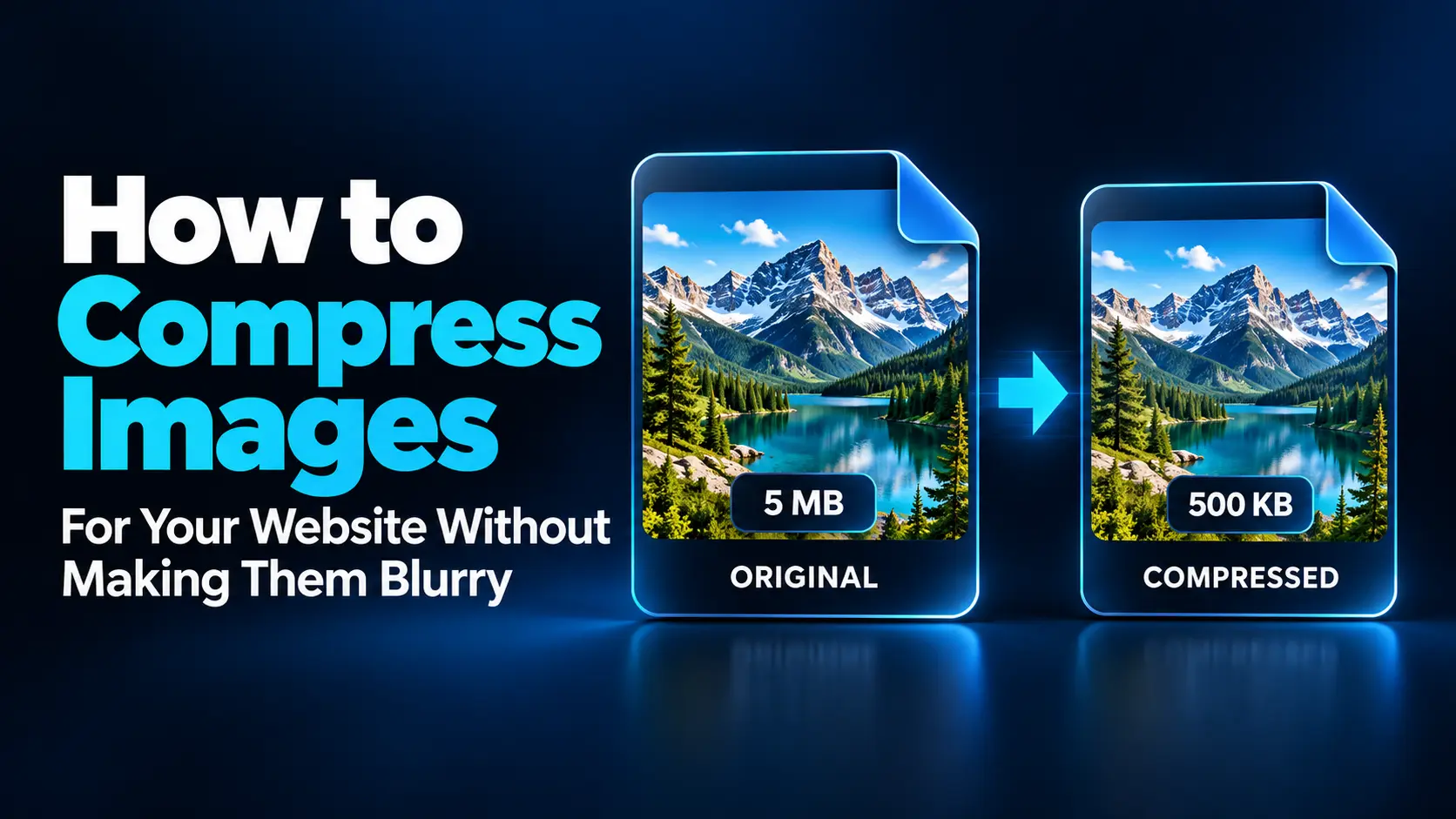
The best approach combines suitable pixel dimensions, an appropriate file format, and carefully tested compression settings. Moving the quality slider to its lowest value rarely produces the best result.
This guide explains how to compress images for your website, recognize the causes of blur, and check that your published images still look sharp on desktop and mobile screens.
Why Do Website Images Become Blurry?
Compression is only one possible cause. An image may already be out of focus, have too few pixels for its display size, or be replaced by a smaller version after upload.
Before adjusting export settings, compare the original file, your compressed copy, and the image displayed on the website. This helps identify where the quality changed.
| What you notice | Possible cause | What to check |
|---|---|---|
| The original already looks soft | Poor focus, motion blur, or a low-quality source | Find a better original before compressing |
| Small details disappear after export | Excessive lossy compression | Increase quality or compare another format |
| The image looks sharp as a thumbnail but soft when enlarged | Insufficient pixel dimensions | Use a larger source or reduce its display size |
| The local file looks good but the website version does not | Automatic resizing, recompression, or the wrong image variant | Inspect the actual file delivered by the website |
| Small text has fuzzy edges or colored marks | A lossy format or setting unsuitable for the graphic | Test PNG or lossless WebP |
A useful rule is to diagnose before compressing again. Another compression pass will not fix an image that is being stretched beyond its available detail.
Understand Lossy and Lossless Compression
Lossy compression discards some image information to reduce file size. JPG and the lossy modes of WebP and AVIF use this general approach. Suitable settings can produce a visually convincing result, but excessive compression can damage fine detail.
Lossless compression preserves the image data being encoded. PNG and lossless WebP are useful examples. They are worth considering when small text, sharp lines, or precise graphics matter.
Lossless compression does not mean every step in the workflow is lossless. Resizing, reducing colors, or editing the image before export can still change it.
1. Start with the Best Available Original
Use the original photograph, screenshot, or design export whenever possible. Avoid starting with an image copied from a social media preview, messaging app, or small website thumbnail if a better source exists.
Keep an untouched master and create website versions from it. This lets you change dimensions or quality settings later without relying on a previously compressed copy.
For example, if you need a product photograph for a large detail view, start with the camera image rather than enlarging the thumbnail used on the category page.
Opening or copying a file does not itself degrade it. The concern is repeatedly re-encoding an image with lossy compression. Work from the master when preparing a replacement.
2. Choose Dimensions Based on the Image’s Display Size
Pixel dimensions and file size describe different things. A 2,000-pixel-wide image has a particular amount of spatial detail; its size in kilobytes depends on its content, format, and encoding.
Uploading a very large image for a tiny card can waste data. Shrinking it too far can create the opposite problem: the browser has to enlarge a source that lacks sufficient detail.
Consider both the image’s width in the page layout and the display’s pixel density. For example, an image shown at 800 CSS pixels wide may benefit from a 1,600-pixel-wide source on a display with a device pixel ratio of two.
This is a planning example, not a requirement to double every image. Responsive delivery can provide different versions for different viewing conditions.
Do not enlarge a small original merely to meet a numerical target. Increasing its dimensions does not recreate detail that was never present.
3. Crop Unnecessary Areas Before Exporting
Cropping can make an image more useful while reducing the amount of content you need to deliver.
A tutorial screenshot, for instance, may contain a small settings panel surrounded by an entire desktop. Cropping to the relevant panel makes its controls easier to see without forcing readers to enlarge a huge screenshot.
Keep enough context for the image to remain understandable. Avoid cropping away labels, product edges, or other details that explain what the reader is looking at.
Choose the intended aspect ratio before your final export. If the website later forces the image into a different shape, it may crop important content or stretch the picture.
4. Match the Format to the Content
No format is best for every website image. Use the image’s content and purpose to narrow your options.
| Image type | Formats to consider | What to inspect |
|---|---|---|
| Photographs | WebP, AVIF, or JPG | Faces, textures, shadows, and smooth gradients |
| Screenshots and diagrams | PNG or lossless WebP | Small lettering and thin lines |
| Transparent graphics | PNG or WebP | Edges against light and dark backgrounds |
| Vector logos and icons | SVG when a suitable vector original exists | Accurate shapes at different display sizes |
WebP and AVIF can offer efficient photographic compression, but neither guarantees a smaller file for every image. Compare actual results and confirm that your publishing workflow supports the chosen format.
For an existing vector logo, SVG can preserve sharp shapes across different sizes. Simply placing a blurry photograph inside an SVG file does not turn it into a sharp vector image.
5. Adjust Quality Gradually
Begin with a moderately high quality setting and reduce it in small steps while comparing the result.
For a photographic JPG or lossy WebP export using a 0–100 scale, a setting around 75–85 can be a useful first experiment. It is not a guaranteed best setting, and the same number does not represent identical quality across formats or applications.
Look closely at areas where compression is likely to become distracting:
- Hair, foliage, fabric, and other fine textures.
- Small lettering and high-contrast edges.
- Clouds, skies, and other gradual color transitions.
- Faces and important product details.
If lowering quality creates an obvious problem, return to the previous acceptable setting. Compare a different format before reducing the dimensions further.
For PNG, compression effort is different from image quality. A stronger lossless compression setting does not deliberately blur the pixels, while separate palette-reduction or resizing options can alter the image.
6. Compare Images at a Useful Viewing Size
Check the export both at its intended display size and at 100% zoom, where you can inspect individual image detail.
The intended size tells you whether the picture works in context. The closer view helps reveal artifacts around lettering, product edges, and textures.
Do not make extreme magnification your only standard. An insignificant difference visible at several hundred percent zoom may not justify a much larger download. On the other hand, a product image with a zoom feature needs enough detail for that feature to be useful.
Compare like with like. If one version is smaller in pixel dimensions, its file-size advantage cannot be attributed entirely to better compression.
7. Try a Simple Browser-Based Compression Workflow
Squoosh is one option for comparing image formats and compression settings in a browser. Its image processing runs locally on your device.
- Open your original: Choose a representative image rather than starting with your entire library.
- Set the required dimensions: Preserve the aspect ratio unless you intentionally crop first.
- Select an output format: Try a suitable photographic or lossless option.
- Compare the preview: Inspect important areas using the comparison controls.
- Adjust one setting at a time: Watch both appearance and output size.
- Download an acceptable version: Keep it separate from the original.
- Test it on your website: Confirm that the published result matches your expectations.
For a larger collection, first test a few different examples: a detailed photo, a smooth illustration, a screenshot, and a transparent graphic. A single preset may not suit all four.
8. Deliver Different Sizes to Different Screens
Responsive web design includes choosing suitable image resources for different viewing conditions.
HTML attributes such as srcset and sizes let a website describe available image versions and their expected display size. The browser can then choose a resource using factors such as layout and display density.
Many publishing systems can generate several sizes, but the theme must use them correctly. Uploading a large original does not guarantee that visitors receive an appropriate version.
If an image appears blurry on a particular page, check whether that page is using a small thumbnail. Replacing the original will not solve a template that continues selecting the wrong derivative.
9. Check for Automatic Recompression After Upload
Your image may pass through more than one optimization stage: the editor, publishing system, optimization plugin, and image delivery service.
These stages can be useful, but their settings need to work together. An already heavily compressed image may deteriorate if another service applies an aggressive lossy conversion.
If the downloaded export is sharp but the published version is soft:
- Confirm that the page is showing the new image rather than a cached older version.
- Check the dimensions of the image actually delivered.
- Review automatic quality and resizing settings.
- Change one setting, then inspect the updated result.
Keep a record of the setting that solved the problem. This is more useful than repeatedly uploading slightly different files without knowing which version visitors receive.
How Small Should a Website Image Be?
There is no universal file-size target that suits every image. A small icon, a full-width photograph, and a detailed chart have different requirements.
As a hypothetical example, a page with ten images averaging 400 KB transfers about 4 MB of image data. If acceptable alternatives average 150 KB, that becomes about 1.5 MB. These are illustrative figures, not a promised compression result.
Consider the total page rather than forcing every file below an arbitrary limit. A diagram is not successfully optimized if its labels become unreadable.
Give priority to large or frequently viewed images, then assess whether further savings are worth the visual tradeoff.
Compression Is Only Part of Website Performance
Smaller files can reduce download time, but loading behavior also matters. A compressed hero image may still appear late if the browser discovers it too slowly.
Lazy loading can help defer images farther down a page. However, avoid lazy-loading the prominent image responsible for the page’s Largest Contentful Paint, because that can delay its appearance.
Use PageSpeed Insights to investigate loading problems, then visually review the page. A performance report helps identify opportunities; it does not determine whether your product photo or screenshot remains clear enough.
Also use descriptive filenames and helpful alternative text. Image optimization should support accessibility and understanding as well as download efficiency.
Frequently Asked Questions
1. Can I compress images without losing any quality?
Lossless compression can preserve the image data being encoded, although the size reduction varies. Lossy compression can produce larger savings with little visible difference, but it still changes image information.
2. Why is my image blurry even at a high quality setting?
The source may be blurry, the exported dimensions may be too small, or the website may be serving a thumbnail. A higher compression-quality setting cannot correct those problems by itself.
3. Does converting JPG to PNG improve sharpness?
No. PNG does not restore detail discarded from a JPG. It can preserve the decoded image without another lossy encoding step, but the existing blur or artifacts remain.
4. Should I convert every image to WebP?
No. Test representative files first. WebP is useful for many images, but some conversions produce little benefit or a larger file. Keep the version that meets your quality, size, and compatibility requirements.
5. Can sharpening fix an overcompressed image?
Sharpening may emphasize edges, but it cannot reliably restore missing detail. It can also make artifacts more noticeable. Return to a better source and export with more suitable settings when possible.
A Reliable Approach to Sharp, Smaller Images
Start with a good original, choose dimensions suited to the layout, and compare formats at an acceptable visual quality. Preserve your source files so you can revise the export without starting from a damaged copy.
Finish by checking the actual website on different screens. The image is ready when it communicates clearly, fits its intended space, and avoids transferring unnecessary data.